eHallPass Pass Not Sending? Here’s What “Not Sending” Usually Means
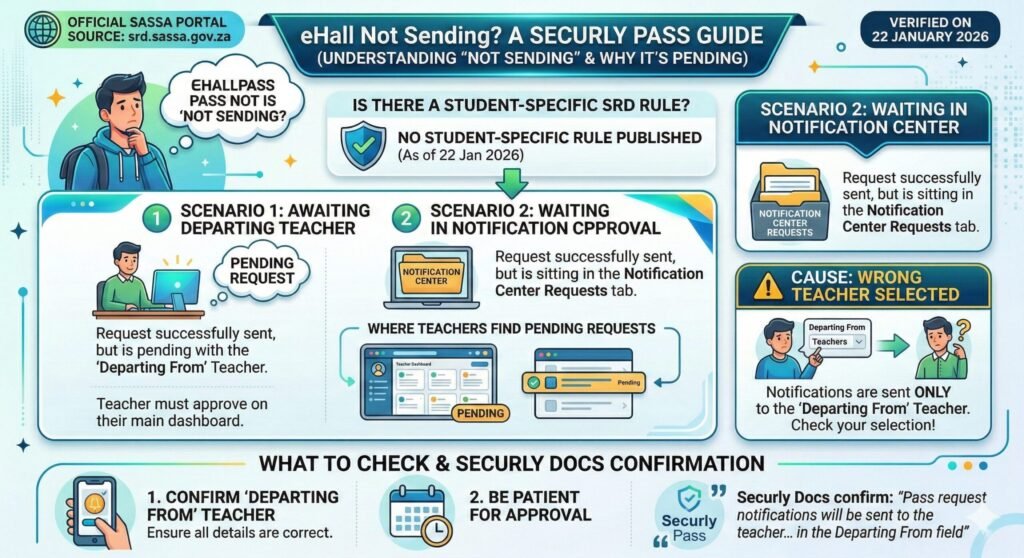
In Securly Pass, a request usually did send but is pending with the teacher set in “Departing From” or sitting in the Notification Center Requests tab.
In Securly Pass, a request usually did send but is pending with the teacher set in “Departing From” or sitting in the Notification Center Requests tab. If the wrong teacher was selected, the request goes to that teacher instead. The Securly docs say “Pass request notifications will be sent to the teacher who the student requests the pass from in the Departing From field”.
What “Pass Not Sending” Means in Securly Pass
Here is the thing though. “Pass not sending” is not an official error in Securly Pass. What people call “not sending” usually means the request is pending or routed to the wrong teacher.
“Sending” = request is created and routed
When you submit a pass request, the system creates it and routes it to the teacher in the “Departing From” field. That is “sending”.
“Not sending” symptoms people report:
- Teacher says nothing arrived. The teacher might not be the “Departing From” teacher or the request is sitting in the Requests tab unread.
- Student sees no badge or no active pass. This means the request is pending, not that it failed to send. The Securly docs say “Notice that there is no badge in Linda’s card view as her pass request has not been approved yet”.
- Student used kiosk and nothing appears. Kiosk requests route the same way as device requests. The “Departing From” teacher still gets the notification.
Between you and me, most “not sending” issues are really “not approved” or “sent to the wrong teacher” issues.
Verified Anchor Points to Cite in the Article
- Requests route to the Departing From teacher. The docs say “Pass request notifications will be sent to the teacher who the student requests the pass from in the Departing From field”.
- Pending requests appear in Requests tab. The docs say “Any pending request will be shown in the Requests tab”.
- Popup appears to the teacher whose class is being left. The docs say “When a student requests a hall pass, a popup will appear on the teacher’s screen whose class they are requesting to leave”.
- No badge = not approved yet (pending). The docs say “Notice that there is no badge in Linda’s card view as her pass request has not been approved yet”.
Verified Request Flow (Student → Teacher)
Student Side (What Happens After Pressing Request)
- Step 1: Student submits request with Departing From teacher and destination. The Securly Pass integration guide says “Pass request notifications will be sent to the teacher who the student requests the pass from in the Departing From field”.
- Step 2: Request exists but is not active until approved. The docs confirm “her pass request has not been approved yet” means no badge.
- Step 3: Student may see no badge while waiting approval. This is normal. It does not mean the request failed to send.
Look, I will be straight with you. If you do not see a badge, wait. The teacher has not approved yet. Do not assume it failed.
Teacher Side (Where It Appears)
- Step 1: Teacher gets a popup for the request. The docs say “When a student requests a hall pass, a popup will appear on the teacher’s screen whose class they are requesting to leave”.
- Step 2: If popup is ignored or closed, teacher can still act via notification center. The docs say “If the teacher decides to ignore the request or closes it, the request can still be approved or canceled from the notification center”.
- Step 3: Teacher checks Notification Center, Requests tab for pending requests. The docs say “Any pending request will be shown in the Requests tab”.
Honestly, this drives us crazy when teachers close the popup and forget to check the Requests tab. Students sit waiting for approval that never comes.
The 2 Biggest Causes That Look Like “Not Sending”
Cause A: Wrong “Departing From” Teacher Selected
What it looks like: Teacher A says “I didn’t get it” but Teacher B did. Why it happens: The Securly docs say “Pass request notifications will be sent to the teacher who the student requests the pass from in the Departing From field”. If the student selects the wrong teacher, the request goes to that teacher. Not the one you expected.
Fix (student or teacher): Confirm the selected “Departing From” matches the intended teacher. If the wrong teacher was chosen, the request is sitting in that teacher’s Requests tab.
Cause B: Teacher Didn’t Respond Yet (Request Is Pending)
What it looks like: Student sees no badge. Teacher says “I didn’t see it”. Why it happens: The request is pending in the teacher’s Requests tab. The teacher either missed the popup or has not checked the Requests tab.
Fix (teacher): Check Requests tab. The docs say “Any pending request will be shown in the Requests tab”. Approve or deny.
In our experience, this is the number one cause of “not sending” reports. The request sent fine, just to the wrong person.
“Teacher Not Receiving” Checklist (Verified-Only)
For Students
- Confirm you selected the correct Departing From teacher. The docs say “Pass request notifications will be sent to the teacher who the student requests the pass from in the Departing From field”. If you picked the wrong teacher, the request went to them.
- If you don’t see a badge, the request may still be waiting approval. The docs say “Notice that there is no badge in Linda’s card view as her pass request has not been approved yet”. This is normal.
- Do not submit multiple requests for the same trip. Wait for the teacher to respond to the first one. Submitting more requests just clogs the Requests tab.
For Teachers
- Check popup (if it appeared). The docs say “When a student requests a hall pass, a popup will appear on the teacher’s screen whose class they are requesting to leave”.
- Open Notification Center, Requests tab and look for the student request. The docs say “Any pending request will be shown in the Requests tab”.
- Confirm you are the Departing From teacher. The docs say “Pass request notifications will be sent to the teacher who the student requests the pass from in the Departing From field”. If you are not the Departing From teacher, you will not see the request.
- Co-teachers may not see the same notifications. The Securly Pass integration guide says “A co‑teacher will not see the same notifications as the main teacher”. If you are a co-teacher, you might not get the popup.
Between you and me, if you are the co-teacher and the student selected the main teacher, you will not see that request.
Kiosk Requests “Not Sending” (What We Can Say Verified)
What Kiosk Is For (Verified)
The e-hallpass product brief says “Pass Kiosk: Provide pass request and check‑in access to students without school or personal devices”. Kiosks allow students to request passes when they do not have a device.
What’s Not Verified
We did not find exact kiosk failure troubleshooting steps or kiosk-specific error messages in the Securly docs. Do not assume kiosk requests work differently from device requests unless you have a verified source.
What to Do (Keep It Grounded)
Treat kiosk requests as normal requests. The teacher still checks Requests tab and Departing From routing. The Securly Pass integration guide confirms “Pass request notifications will be sent to the teacher who the student requests the pass from in the Departing From field”. That applies to kiosk requests too.
If a kiosk request is not appearing, check the same things you would check for a device request. Wrong Departing From teacher, pending in Requests tab, and more.
Rules That Don’t Block “Sending” (But Can Block Approval)
Here is what most people do not realize. Rules like pass limits, destination closed, destination full, and no-contact restrictions are checked at approval time, not when the request is sent.
Frame clearly: These checks affect approval decisions, not whether the request is created.
- Pass limit checks. The e-hallpass product brief says the system “automatically checks to see if the student has a pass limit”. If the limit is reached, the teacher sees this when reviewing the pending request and can deny it.
- Destination closed or full checks. The product brief says the system checks “if the requested destination is closed or full”. If the destination is closed or full, the teacher sees this warning and can deny or reroute.
- No-contact restrictions. The product brief says the system checks if “there’s another student in the halls that student isn’t allowed to be out with”. If a no-contact conflict exists, the teacher sees this when reviewing the pending request.
Important
The request still sends. It appears in the teacher’s Requests tab. The teacher then decides whether to approve or deny based on the rule flags. Rules do not auto-deny. The teacher must act.
What to Do
If the teacher sees rule flags, they can deny or adjust based on school policy or settings. The docs say “The teacher can choose to approve or deny the pass request”. Rules do not auto-deny. The teacher must act.
It is frustrating when we see schools misunderstand this. Teachers think the system will auto-deny requests that violate rules, but it does not. The teacher must manually deny.
When It’s a System or Setup Issue (Escalation)
Escalate to School IT or Admin When:
- Multiple students report requests never show up for the correct teacher. This points to a “Departing From” routing or rostering issue.
- Teacher Requests tab stays empty despite students submitting. If the Requests tab is always empty but students say they are submitting requests, IT should investigate.
- Kiosk requests consistently don’t appear. If no kiosk requests ever show up in the teacher’s Requests tab, IT should check kiosk configuration and network access.
- Routing or assignment issues (Departing From mismatches) appear across classes. If multiple teachers report getting requests for students not in their class, IT should verify rostering and class assignments.
Admin Checks to Include (Verified Framing)
- Verify rostering and class assignments align with Departing From routing. The Securly Pass integration guide says “Pass request notifications will be sent to the teacher who the student requests the pass from in the Departing From field”. IT should confirm the student roster matches the class assignments in Pass.
- If Cloudflare verification screens appear, it can indicate connection or security checks impacting access. The support article says “You are receiving this message from Cloudflare because your connection is causing the Pass system to check for suspicious activity”. Widespread Cloudflare prompts suggest a network or traffic issue.
- Ensure pass.securly.com and subdomains are allowed. The support article says “pass.securly.com – along with all subdomains” should be allowed. IT should verify firewall, content filter, and SSL inspection settings.
We believe strongly that IT should check rostering and “Departing From” mappings first. Most “not sending” issues come down to incorrect class assignments or wrong teacher selection.
Troubleshooting Decision Tree
If student sees no badge →
Then request may be unapproved or pending. The docs say “Notice that there is no badge in Linda’s card view as her pass request has not been approved yet”. Wait for teacher approval.
If teacher didn’t “receive” it →
Then confirm Departing From teacher selection. The docs say “Pass request notifications will be sent to the teacher who the student requests the pass from in the Departing From field”. If the wrong teacher was chosen, the request went to them.
If request exists in Requests tab →
Then teacher approves or denies. Rules may influence the decision. The docs say “The teacher can choose to approve or deny the pass request”.
If multiple users affected →
Then IT investigates rostering, routing, and broader access issues. Verify class assignments and network allowlisting.
FAQs: eHallPass Pass Not Sending
The request probably did send but is pending in the teacher’s Requests tab. The Securly docs say “Any pending request will be shown in the Requests tab”. If you do not see a badge, the teacher has not approved yet. Also confirm you selected the correct teacher in the “Departing From” field.
Pass requests appear in the Pass Notification Center under the Requests tab. The docs say “Any pending request will be shown in the Requests tab”. Teachers also get a popup notification when a student from their class requests a pass.
No badge means the request is pending (not approved yet). The Securly docs say “Notice that there is no badge in Linda’s card view as her pass request has not been approved yet”. Wait for the teacher to approve.
No. The Securly Pass integration guide says “A co‑teacher will not see the same notifications as the main teacher”. Only the teacher set as “Departing From” receives the request.
Open the Pass Notification Center and go to the Requests tab. The docs say “Any pending request will be shown in the Requests tab”. This is where teachers see all pending pass requests.
“Departing From” is the teacher whose class the student is leaving. The Securly Pass integration guide says “Pass request notifications will be sent to the teacher who the student requests the pass from in the Departing From field”. That teacher receives the request notification.
No. Rules are checked at approval time, not when the request is sent. The e-hallpass product brief says the system “automatically checks to see if the student has a pass limit, the requested destination is closed or full, or if there’s another student in the halls that student isn’t allowed to be out with”. The teacher sees these warnings and decides whether to approve or deny.
Contact school IT or admin. If multiple students report requests never show up for the correct teacher, IT should verify rostering, class assignments, and “Departing From” routing. IT should also check that pass.securly.com and subdomains are allowed in the network.
Yes. The e-hallpass product brief confirms kiosks provide “pass request and check‑in access to students without school or personal devices”. Kiosk requests route to the “Departing From” teacher and appear in the Requests tab like any other request.
Students should contact their teacher first to confirm the teacher is the “Departing From” location and that the request is in the Requests tab. If the teacher does not see it and other students have the same issue, contact school IT.
We did not find documentation about delivery delay or timeout. In typical usage, requests should appear almost immediately. If requests are delayed or never appear, contact IT.
The Securly docs mention “the request can still be approved or canceled from the notification center”. Students should ask the teacher to cancel or deny the request if they no longer need it.
Related Guides
Do Not Claim (Safety Box)
- No guaranteed delivery delay or timeout. We did not find documentation stating how long a request takes to appear in the Requests tab or whether requests auto-expire.
- No invented error strings (“pass not sending”). We found verified terms like “pending request” and “Waiting Approval”, but we did not find an exact “pass not sending” error message in the Securly docs.
- No universal district behavior beyond verified routing and notification center basics. Routing rules, approval workflows, and kiosk configuration vary by district. What works at one school might not work at another.