eHallPass Login Guide (Students & Teachers)
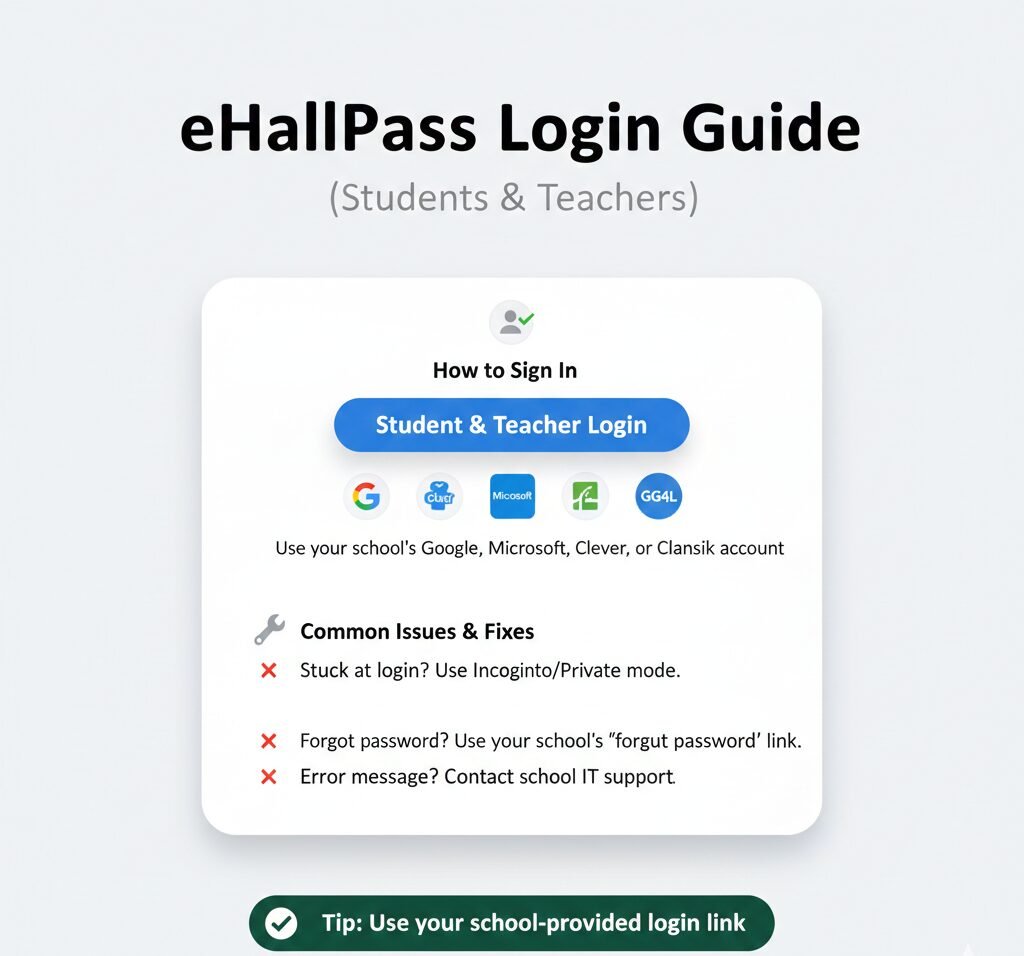
Use your school’s portal or the sign-in link your school provides. Most districts configure eHallPass to work with their existing identity provider—like Google, Clever, Microsoft, ClassLink, or GG4L—so you authenticate once and gain access to all your school apps. If you’re stuck at the login screen, can’t remember your password, or see an error message, this guide walks you through every scenario step by step.
Where to sign in
Knowing the right place to click matters. Schools deploy eHallPass in different ways, so your login experience depends on your district’s configuration.
Use your school or district portal first
Start with your school’s website, student portal, or learning management system. Most districts embed the eHallPass login link in their main navigation menu, student resources section, or teacher dashboard. You might see a button labeled “Hall Pass,” “eHallPass,” or “Digital Passes.” Clicking it takes you directly to the correct sign-in page configured for your school.
Many schools use managed accounts and single sign-on (SSO). This means your login credentials are tied to your existing school Google, Microsoft, or district identity provider. If your school uses managed accounts, you won’t create a separate eHallPass password—authentication happens automatically through the platform your school already uses for email, classroom tools, and other apps.
If you don’t see a login link on your school’s website: Check your email for messages from your district’s IT department sent during onboarding or at the start of the school year. Schools typically send login instructions with a direct link to the portal when they first activate the system.
If your school uses Securly Pass
Many schools access eHallPass through the Securly Pass platform. When you reach the sign-in page, you’ll see options to authenticate through a third-party identity provider. According to Securly documentation, if your school uses one of these services, you should log in using it rather than creating separate credentials.
Common identity providers on Securly Pass sign-in pages include:
- Google (for schools using Google Workspace for Education)
- Clever (for districts that launch apps through Clever portals)
- Microsoft (for schools using Office 365 or Azure Active Directory)
- ClassLink (for districts using ClassLink LaunchPad)
- GG4L (Global Grid for Learning, used by some districts)
The specific options visible on your sign-in screen depend on what your school IT department has enabled. You’ll only see the authentication buttons your school configured.
Avoid “fake login” pages
Red flags to watch for:
- Sites claiming “free premium eHallPass” – Legitimate school systems don’t offer paid premium tiers to individual students.
- Pages promising “bypass” or “unlimited passes” – These are phishing sites designed to steal usernames and passwords.
- Random look-alike domains – Official access happens through your school’s portal or verified district links, not through third-party domains with slight spelling variations.
Always verify the URL before entering credentials. If you’re unsure whether a login page is legitimate, close the tab and navigate to your school’s official website instead. Contact your school’s IT help desk if you received a suspicious link via email or text message.
Step-by-step login (standard method)
If your school doesn’t use SSO, you’ll log in with a username and password assigned by your district. Here’s the complete process.
Open the sign-in page your school provides
Navigate to your school’s website and locate the hall pass or eHallPass link. Alternatively, use the direct URL your teacher emailed you. You’ll land on a page with fields for username and password.
Enter your school email/username and password
Type the credentials your school assigned during onboarding. Your username is often your student ID number, your school email address, or a format like firstname.lastname. Your password is typically a temporary code you were required to change on first login.
If your school uses password login (as opposed to SSO), you’ll see a traditional username/password form. Some schools disable password login entirely in favor of SSO, so you might not see these fields at all—just identity provider buttons.
Click Sign In
Press the login button. If your credentials are correct, the system redirects you to your dashboard. If you see an error, double-check your spelling and capitalization. After three consecutive failed attempts, some schools temporarily lock accounts for security—wait five to ten minutes before trying again.
You should land on your dashboard
Students see a Request Pass button and history. Teachers see a queue of pending requests and approval tools. Admins see system-wide analytics and configuration options. The interface adjusts automatically based on your role.
What happens after login
Students can request and check passes – Your dashboard displays a button to submit a new pass request, a dropdown menu of approved destinations (bathroom, nurse, office, etc.), and a list showing your pass history with timestamps and approval status.
Teachers review and approve requests – Your dashboard shows a notification counter for pending requests. Click a request to see the student’s name, destination, and current pass count for the day. Approve or deny with one tap, and optionally add a note explaining why (like “please wait until after the quiz”).
The exact layout varies by school configuration, but the core functions remain consistent: students request, teachers approve, and both parties see activity history.
Single sign-on options your school may use
Single sign-on (SSO) eliminates the need to remember separate passwords for every school application. When your district enables SSO, you authenticate once through your school’s identity provider, and eHallPass opens automatically without asking for additional credentials.
Schools choose which sign-in method to enable. You won’t necessarily see all the options listed below—your sign-in screen only displays the identity providers your school IT department has configured. If you see multiple buttons and aren’t sure which one to use, ask your teacher or check your school’s IT documentation.
Pick your identity provider
- Google – If your school uses Google Workspace for Education, you sign in with your school Google account. Click the Sign in with Google button, enter your school email (usually ending in something like @students.yourschool.edu), and authenticate. Google verifies your identity and redirects you back to eHallPass without requiring a separate password.
- Clever – If your district launches apps through Clever, you access eHallPass from your Clever LaunchPad. Log in to your school’s Clever portal (typically clever.com/in/yourschool), find the eHallPass app tile, and click it. Clever handles authentication behind the scenes and opens eHallPass with your account already logged in.
- Microsoft (Azure AD) – If your school uses Office 365 or Azure Active Directory, you sign in with your school Microsoft account. Select the Sign in with Microsoft button, enter your school email and password, and complete authentication. Microsoft confirms your identity and sends you to eHallPass.
- ClassLink – If your district uses ClassLink LaunchPad, you access eHallPass through your ClassLink portal. Log in to ClassLink (usually a custom URL like launchpad.classlink.com/yourschool), locate the eHallPass icon in your app list, and click to launch. ClassLink authenticates you automatically.
- GG4L – If your district uses Global Grid for Learning, you sign in through your GG4L portal. Navigate to your school’s GG4L page, log in with your GG4L credentials, and find eHallPass in your app dashboard. Click to launch, and GG4L handles authentication.
If you’re not sure which SSO to use
Ask your school IT team. Most schools enable only one SSO method, so you typically won’t face a choice. If you do see multiple identity provider buttons on the login screen, choosing the wrong one results in an “account not found” error because your credentials don’t exist in that system.
Your school’s IT help page, welcome email, or orientation materials usually specify which identity provider to use. If you can’t find this information, email your school’s help desk or ask your teacher during class.
What are my login credentials?
Your login method—password-based or SSO—comes from your school, not from eHallPass directly. Understanding where your credentials originate helps you know who to contact when you have access problems.
Credentials are school-managed: Your school provides your access method. Some schools assign traditional usernames and passwords during orientation. Others skip password login entirely and configure SSO through Google, Microsoft, Clever, ClassLink, or GG4L. Your credentials depend on which approach your district chose.
If your school uses password login: You receive a username (often your student ID, school email, or a custom format like firstname.lastname) and a temporary password you’re required to change on first login. Passwords typically follow your district’s security policy.
If your school uses SSO: You don’t receive separate eHallPass credentials. Instead, you use the same username and password you use for email, Google Classroom, Microsoft Teams, or other school apps. Authentication happens through your identity provider, and eHallPass never stores a password.
If you don’t know your login details: Contact your teacher for students, or your school’s IT help desk for teachers. Do not attempt to guess, create your own account, or use a friend’s credentials.
Forgot password or can’t access your account
Password reset
If you use SSO (Google, Clever, Microsoft, ClassLink, GG4L): You don’t have a separate eHallPass password to reset. Your password is managed by your identity provider. Reset it through that platform instead:
- Google accounts: Visit accounts.google.com/signin/recovery and follow the recovery steps.
- Microsoft accounts: Go to account.microsoft.com and select “Forgot password.”
- Clever, ClassLink, or GG4L: Use your district’s portal recovery process or contact your school IT for assistance.
If you use traditional password login: Look for a Forgot Password link on the login page. Click it, enter your username or email address, and check your inbox for a password reset email. Follow the instructions in the message to create a new password.
If the reset email doesn’t arrive within five minutes: Check your spam or junk folder. Confirm you entered the correct email address. If the message still doesn’t appear after ten minutes, contact your school IT—your account might not be configured correctly.
Locked out / too many attempts
After multiple failed login attempts (typically three to five, depending on your school’s security settings), some systems temporarily lock your account to prevent unauthorized access. This lockout usually lasts five to fifteen minutes.
What to do: Wait at least ten minutes without attempting to log in. The lockout timer resets each time you try, so continuing to attempt login extends the delay. After waiting, try once more with the correct credentials. If you’re still locked out after thirty minutes, contact your school IT help desk.
eHallPass login not working
Most login problems resolve quickly with a few systematic checks. Work through this list in order before escalating to support.
60-second checklist
- Confirm you’re using the correct sign-in link – Double-check the URL. Make sure you’re using the portal your school provided, not a third-party site.
- Try private/incognito mode – Press Ctrl + Shift + N (Windows) or Cmd + Shift + N (Mac). This bypasses cached data, cookies, and interference.
- Clear cookies for the site – Go to browser settings and clear browsing data for the specific eHallPass or Securly Pass domain.
- Try another browser – If you’re using Chrome, switch to Edge, Firefox, or Safari to isolate browser-specific bugs.
- Disable extensions briefly – Ad blockers or privacy tools can prevent SSO popups from opening or block authentication requests.
- If you use SSO: select the correct identity provider – Make sure you clicked the right button (Google vs Microsoft, etc.).
Common problems
- “Login failed” error – Usually means incorrect username or password. Double-check spelling, capitalization, and spaces. Try typing credentials manually instead of pasting.
- Redirect loop (SSO mismatch) – Browser bounces without completing authentication. Clear cookies for both eHallPass and your SSO provider’s domain.
- Blank screen after login – Indicates a JavaScript error, blocked content, or a failed resource load. Try a different browser or disable all extensions.
- “Access denied” or “Account not provisioned” – The system doesn’t recognize your account or you haven’t been assigned the correct role. Contact your school IT department.
When to escalate
For account issues, SSO problems, or device configuration, contact your school’s IT help desk. Individual users should not contact vendor support directly. Schools manage their eHallPass deployments, and vendor support requires district-level authentication. Always start with your school IT.
Mobile login
Most schools allow mobile access through a web browser. Some also provide dedicated mobile apps, though availability varies by district.
Browser-based access works on most devices. Open Safari (iOS), Chrome (Android), or your preferred mobile browser. Navigate to your school’s eHallPass portal using the same URL you use on a computer. Log in with your credentials or SSO method. The interface adapts to smaller screens.
Troubleshooting mobile SSO issues: Check whether your browser is blocking popups or third-party cookies. Enable both for the eHallPass and Securly Pass domains, then try again.
FAQs
eHallPass login is the authentication process that grants you access to your school’s digital hall pass system dashboard where you can request passes (students) or approve requests (teachers).
Use the login link your school provides—usually found on your school’s website or student portal. Enter school credentials or click your district’s SSO button to authenticate.
Assigned by your school. Typically your student ID or email and a password. If your school uses SSO, your credentials are the same ones you use for email and other school apps.
If you use SSO, reset your password through that platform (Google, Clever, Microsoft, etc.). If you use traditional password login, click Forgot Password on the login page and follow the email instructions.
Common causes include incorrect credentials, cache issues, blocked popups, or your account not being provisioned yet. Try incognito mode and verify you’re using the correct portal.
Most schools configure SSO to simplify login. Check the login page—if you see identity provider buttons (Google, Clever, etc.) instead of username/password fields, your school uses SSO.
Schools typically enable Google, Clever, Microsoft (Office 365), ClassLink, or GG4L. Your IT department configures which option appears on your screen.
Chrome, Edge, Firefox, and Safari all work. Use the latest version for best compatibility. Make sure JavaScript is enabled and popups are allowed.
Yes, via mobile browsers like Safari or Chrome. Some schools also provide native mobile apps—check with your IT department for availability.
The dashboard view. Students see request tools and history. Teachers see pending approval queues and reporting features. The system adjusts based on your role.
Wait 10-15 minutes for transient issues to resolve. Check your school’s official channels for outage announcements. If it persists, your school IT can escalate to vendor support.
Contact your school’s IT help desk for account issues, SSO problems, or password resets. Provide your name and student/staff ID. Always start with your school IT.
Still having trouble?
Browse our related guides for specific scenarios: password reset walkthroughs, SSO provider comparisons, troubleshooting by error message, and mobile configuration.