eHallPass Not Working? Troubleshooting Guide
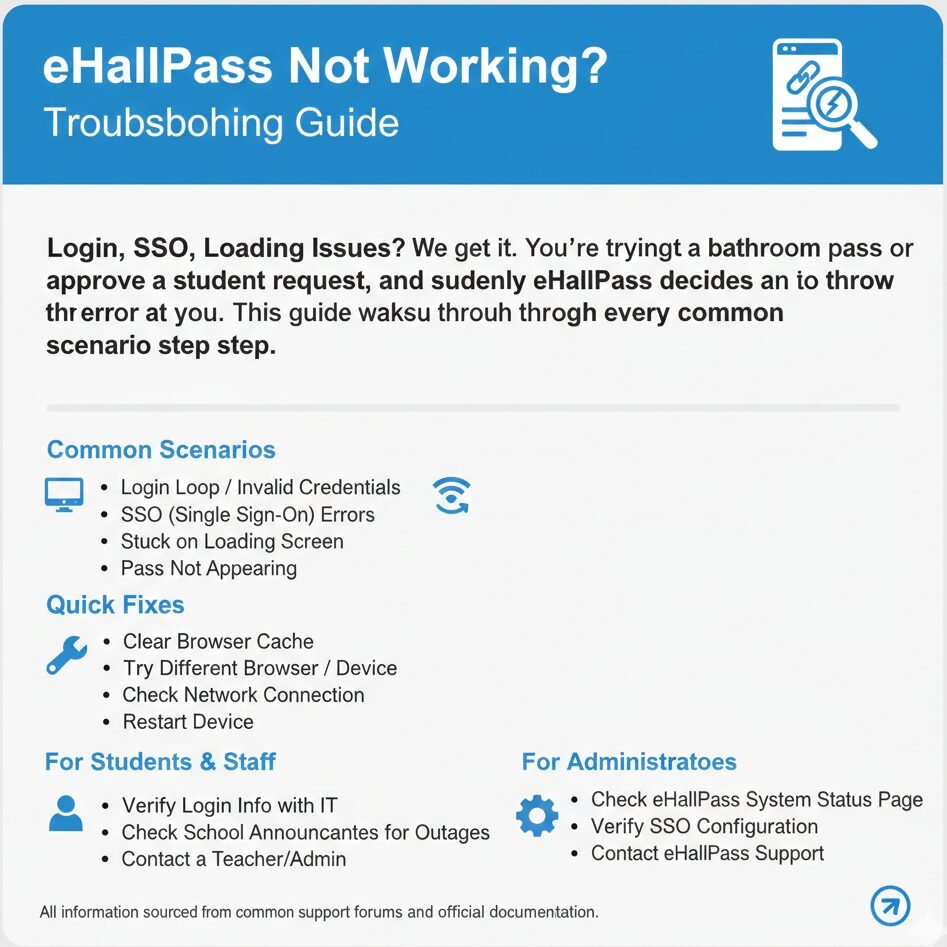
Login, SSO, Loading Issues? We get it. You’re trying to request a bathroom pass or approve a student request, and suddenly eHallPass decides to throw an error at you. This guide walks you through every common scenario step by step.
Look, we get it. You’re trying to request a bathroom pass or approve a student request, and suddenly eHallPass decides to throw an error at you. Maybe it’s a blank screen. Maybe your login just keeps failing. Or maybe the whole thing’s stuck in some endless redirect loop that makes you want to throw your Chromebook out the window.
Here’s the thing though—most eHallPass problems fall into just a handful of categories, and honestly, about 80% of them resolve in under two minutes with the right steps. We’ve compiled every fix we can verify from official sources, mixed with the general best practices that work in most cases. Between you and me, the hardest part is usually just figuring out whether the problem is on your end, your school’s end, or the vendor’s end.
Try this first (60 seconds)
Before you dive into complicated troubleshooting, run through this quick checklist. Usually, one of these steps solves the problem immediately.
- Use the “Forgot Password” feature if login fails. According to the official customer service guidance, this is the first step when you can’t get in. Click the link on the login page and follow the email instructions. Simple, but it works more often than you’d think.
- Try private or incognito mode. Press Ctrl + Shift + N on Windows or Cmd + Shift + N on Mac. This bypasses your cached data and any weird extension conflicts. If it works in incognito, you know the problem is browser-related.
- Clear cookies for the site. Go to your browser settings, find “Clear browsing data,” and select cookies and cached images specifically for the eHallPass or Securly Pass domain. Then refresh and try again.
- Switch browsers. If you’re on Chrome, try Edge or Firefox. Sometimes browser-specific bugs pop up after updates, and switching eliminates that variable instantly.
- Disable extensions briefly. Ad blockers, privacy tools, and script blockers can interfere with SSO authentication popups. Turn them all off, complete your login, then re-enable them.
Escalation rule you need to know: If the issue involves your account, SSO, or device restrictions, contact your school IT. If the entire school can’t access the system, check for announcements and let your school IT contact vendor support. Individual students and teachers shouldn’t reach out to vendors directly—schools manage these deployments, and support teams need district-level credentials to help.
Before you troubleshoot — check what kind of problem this is
Honestly, this step saves so much time. Half the battle is knowing whether you’re dealing with a personal account issue or a system-wide outage.
Is it only you, or the whole school?
Ask a classmate or colleague if they can log in. If they’re having the same problem, it’s likely a school-wide issue. Jump straight to the outage section below and save yourself the frustration of running through individual fixes that won’t work anyway.
If it’s just you, then the problem is probably related to your account, your device, your browser, or how your SSO is configured. Keep reading and work through the fixes below.
Are you using SSO or password login?
- SSO symptoms include: redirect loops where you bounce back and forth between login screens, “account not found” errors when you select a provider, or authentication windows that won’t open at all.
- Password login symptoms include: “wrong credentials” messages, forgot password flows that don’t send emails, or account lockouts after too many failed attempts.
Knowing which method you’re using helps you skip directly to the relevant fix. If you’re not sure, check your login screen. Do you see identity provider buttons like Google, Clever, or Microsoft? That’s SSO. Do you see username and password fields? That’s traditional password login.
Fix 1 — Login failed or access denied
Target this section if you see error messages like “login failed,” “access denied,” “incorrect credentials,” or anything that suggests the system doesn’t recognize your username or password.
Confirmed fixes
- Use the “Forgot Password” reset flow. The official customer service page explicitly recommends this as the first troubleshooting step. Click the “Forgot Password” link on the login page, enter your username or email, and follow the instructions in the reset email. Most password issues resolve here.
- Escalate persistent issues to school support. According to the FAQ guidance from official sources, technical support issues should be reported to your school support team. They control user accounts, provisioning, and role assignments. If the reset doesn’t work or access denied errors continue, your school IT needs to verify your account is properly configured.
General best practices
- Type credentials manually instead of copy-pasting. Sometimes hidden characters, extra spaces, or formatting from other apps sneaks into copied text. Typing by hand eliminates that risk.
- Wait 5 to 10 minutes after multiple failed attempts. Most systems temporarily lock accounts after three to five consecutive login failures. The lockout timer resets every time you retry, so step away and come back in ten minutes.
- Check capitalization carefully. Passwords are case-sensitive. Username fields sometimes are too, depending on how your school configured the system. Double-check that Caps Lock isn’t accidentally on.
When to escalate
If the password reset doesn’t work—meaning the email never arrives, the link in the email is broken, or the new password still fails—contact your school IT. Your account might not be set up correctly, the email address on file might be outdated, or your role assignment might be wrong.
If you keep getting “access denied” after successful authentication, your account exists but you’re not provisioned for the correct role or permissions. Only your school IT can fix this.
Fix 2 — SSO problems (redirect loop, wrong provider, Clever errors)
SSO issues are honestly some of the most frustrating because the error messages are usually vague, and you’re dealing with authentication handoffs between multiple systems. But here’s the good news—most SSO problems trace back to just a few root causes.
Confirmed fix
If your school uses third-party authentication, sign in through that service or provider. According to the Securly Pass sign-in guidance, schools that enable third-party authentication (Google, Clever, Microsoft, ClassLink, GG4L) should have users log in through those platforms rather than creating separate credentials. Make sure you’re clicking the correct identity provider button on the login screen.
General best practices
- Clear cookies for both the hall pass site and your identity provider’s domain. If you use Google SSO, clear cookies for both the eHallPass or Securly Pass domain and google.com. Cached authentication tokens sometimes conflict with fresh login attempts.
- Allow popups for authentication windows. Most SSO flows open a small popup window where you enter your credentials. If your browser blocks popups, the authentication process fails silently. Enable popups specifically for the eHallPass and SSO provider domains.
- Try incognito mode to bypass cached tokens. If your browser stored an old or incorrect authentication token, incognito mode forces a completely fresh login without any cached data interfering.
When to escalate
SSO issues are almost always district configuration problems, which means your school IT needs to get involved. They control which identity providers are enabled, how user accounts map between systems, and whether SSO integrations are functioning correctly. Individual users can’t fix SSO setup—only administrators can.
Fix 3 — Blank screen, white screen, dashboard not loading
Well, it depends on what you mean by “blank screen.” Sometimes it’s literally just white space. Other times you see a loading spinner that never finishes. Each variation has slightly different causes, but the fixes overlap quite a bit.
Confirmed fixes
- Restart your device or app. The official customer service guidance lists this as a primary troubleshooting step. It sounds almost too simple, but restarting clears temporary memory issues and resets network connections. Close the browser completely, restart your device, then try again.
- Clear browser cache and cookies. This is mentioned repeatedly in verified troubleshooting documentation. Old cached files sometimes conflict with updated page code, especially right after system updates. Clearing cache forces your browser to download fresh files.
General best practices
- Update your browser to the latest version. Browser developers constantly patch bugs. If your browser is several versions behind, you might be running into a known issue that’s already been fixed.
- Try a different browser entirely. Chrome, Edge, Firefox, and Safari all handle JavaScript and page rendering slightly differently. If Chrome gives you a blank screen, Edge might work perfectly.
- Disable all browser extensions temporarily. Ad blockers, privacy tools, and productivity extensions can block page resources or scripts that eHallPass needs to function.
When to escalate
If the blank screen only happens on school-issued devices, your school IT might have content filtering, firewall rules, or security policies blocking necessary page resources. They’ll need to whitelist the eHallPass domain or adjust device management settings.
If you can capture an error message or screenshot, share it with support. Even if the screen looks blank to you, your browser console might show specific error codes that help IT diagnose the root cause quickly.
Fix 4 — Password reset not working or account locked
Here’s what most people don’t realize—password reset flows and account lockouts are two separate problems that often get confused because they both prevent login. Let’s break them down.
Confirmed fixes
- Use the password reset flow and follow the email instructions. The official reset password page provides this process. Click “Forgot Password” on the login screen, enter your username or email, check your inbox for the reset link, and create a new password.
- Account lockouts typically clear after a few minutes. According to verified troubleshooting sources, if you enter wrong credentials too many times in a row, the system temporarily locks your account. The lockout ends automatically after a short cooldown period—usually five to fifteen minutes.
General best practices
- Check your spam or junk folder immediately. Password reset emails sometimes get flagged by overzealous spam filters, especially if your school’s email system uses aggressive filtering rules.
- Verify the email address on file is correct. If you’ve never received school emails at the address your account uses, the reset email won’t reach you either. Ask your school IT to confirm what email they have on file.
- Wait out the full lockout cooldown before retrying. Every failed login attempt during the lockout period resets the timer. Walk away for ten minutes, then come back and try once with the correct credentials.
When to escalate
If you can’t access the reset email—meaning it never arrives in either your inbox or spam, even after 15 minutes—contact your school IT. The email address on your account might be wrong, or the email system might be blocking messages.
If your account remains locked for more than 30 minutes, something’s wrong with the automatic unlock process. Your school IT can manually unlock your account and investigate why the automatic cooldown failed.
Fix 5 — School-wide outage, downtime, or maintenance
Speaking of outages, that reminds me—this is probably the most important section to check first, even though we put it toward the end. If the whole system is down, none of the individual fixes above will work.
Confirmed step
Check the official status reporting page. Securly maintains a public status page that shows current system health and any ongoing incidents. If eHallPass is delivered through Securly Pass infrastructure, outages appear there. Look for red or yellow status indicators, incident reports, or scheduled maintenance windows.
General best practices
- Wait 10 to 15 minutes and retry. Network hiccups, server restarts, and transient issues often resolve themselves within minutes. If you see an error at 9:03 AM, try again at 9:15 AM before escalating.
- Check your school’s website, email, or social media for announcements. Many districts post notifications about known system issues or planned maintenance windows. Your school might already know about the problem.
- Confirm your school’s network is functioning. If your school’s internet connection is down, eHallPass won’t load even if the vendor’s servers are running perfectly. Try accessing a few other websites to verify.
Escalation
School IT contacts vendor support on behalf of all users. Individual students and teachers shouldn’t reach out to vendors directly during outages. School IT has the district-level credentials and support contracts needed to open vendor tickets and get real-time updates. If your whole school is affected, report it to your school IT and let them handle vendor communication.
Contact support the right way
Look, I’ll be straight with you—contacting the wrong support channel wastes everyone’s time and delays your resolution. Here’s who to contact for what.
Contact school IT when:
- SSO issues arise. Single sign-on configuration lives entirely within your district’s setup. Identity provider connections, user mapping, and role assignments are all managed by your school IT team.
- Account provisioning problems occur. If you get “account not found,” “access denied,” or “not provisioned,” your school IT needs to verify your account exists and has the correct permissions.
- Device restrictions block access. School-issued Chromebooks often have content filtering or security policies that can interfere. Only school IT can adjust those settings.
- District portal problems prevent login. If your school embeds eHallPass in a custom portal or LMS, issues with that portal are school IT problems.
Contact vendor support when:
- Confirmed outage or platform issue affects multiple schools. If the status page shows an incident, or your school IT confirms it’s a vendor-side problem, vendor support needs to get involved.
- School IT instructs you to open a vendor ticket. Sometimes school IT investigates and determines the issue requires vendor engineering review. They’ll tell you if and when to contact vendor support directly.
What to include when you contact support:
- Exact error message text (copy it word for word)
- Screenshot of the error screen
- Device type (Chromebook, Windows laptop, MacBook, iPad, iPhone, Android phone)
- Browser and version (Chrome 131, Safari 17, Firefox 123, etc.)
- Time when the error occurred (helps support check server logs)
- Whether you use SSO or password login
- What troubleshooting steps you already tried
The more detail you provide upfront, the faster support can diagnose and fix the issue. Vague reports like “it doesn’t work” force support to ask follow-up questions that delay resolution.
FAQs
Common causes include incorrect login credentials, account lockouts after too many failed attempts, SSO configuration mismatches, browser cache conflicts, blocked popups preventing authentication, school network filtering, or vendor-side outages. Work through the troubleshooting steps above to narrow down the specific cause.
Start with the “Forgot Password” reset flow if you use password login. For SSO, verify you’re clicking the correct identity provider button. Try incognito mode, clear cookies for both eHallPass and your SSO provider, and enable popups. If problems persist after these steps, contact your school IT.
Check the Securly status page for real-time system health reports and incident notifications. If the status page shows all systems operational but you still can’t access eHallPass, the issue is likely specific to your school’s configuration or your individual account.
Restart your device or browser first. Then clear browser cache and cookies, update your browser to the latest version, try a different browser, and disable all extensions temporarily. If the blank screen persists only on school devices, contact school IT about possible content filtering issues.
Click the “Forgot Password” link on the login page, enter your username or email address, and check your inbox (including spam folder) for the reset email. Follow the instructions in the email to create a new password. If the email never arrives, verify with school IT that they have the correct email address on file for your account.
Check your spam or junk folder first. Verify you entered the correct username or email when requesting the reset. Wait at least 10 minutes for email delivery. If the email still doesn’t arrive, contact your school IT to confirm the email address associated with your account is correct and receiving messages.
Most lockouts clear automatically after 5 to 15 minutes depending on your school’s security settings. The timer resets each time you attempt to log in during the lockout period, so wait the full cooldown before retrying. If your account remains locked after 30 minutes, contact school IT for manual unlock.
Clear cookies for both the eHallPass domain and your SSO provider’s domain (like google.com or microsoft.com). Try incognito mode to bypass cached authentication tokens. Verify you’re clicking the correct identity provider button on the login screen. If the loop continues, contact school IT about SSO configuration.
Contact your school IT team. SSO configuration, identity provider connections, user account mapping, and role assignments are all managed at the district level. Individual users can’t fix SSO setup issues—only school administrators with system access can adjust those settings.
Chrome, Edge, Firefox, and Safari all work in most cases. Use the latest version of your preferred browser for best compatibility. If one browser gives you problems, try another to see if the issue is browser-specific. Make sure JavaScript is enabled and popups are allowed for the eHallPass domain.
Restart the device first. Clear browser cache and cookies. Try accessing eHallPass from a different device to confirm the issue is device-specific. For school-issued Chromebooks, contact school IT about device management policies that might block authentication. For mobile, ensure popups and cookies are enabled.
Contact your school’s IT help desk for account issues, SSO problems, device restrictions, or portal access. Contact vendor support only if your school IT confirms it’s a platform-wide issue or instructs you to open a vendor ticket. Always include error message text, screenshots, device details, and browser information when seeking help.
Still stuck?
Browse our related guides for deeper dives into specific scenarios: password reset walkthroughs, SSO provider troubleshooting, dashboard loading issues, account lockout recovery, and when to escalate to different support channels. We’ve built this help hub to get you answers fast, no matter what error you’re facing.