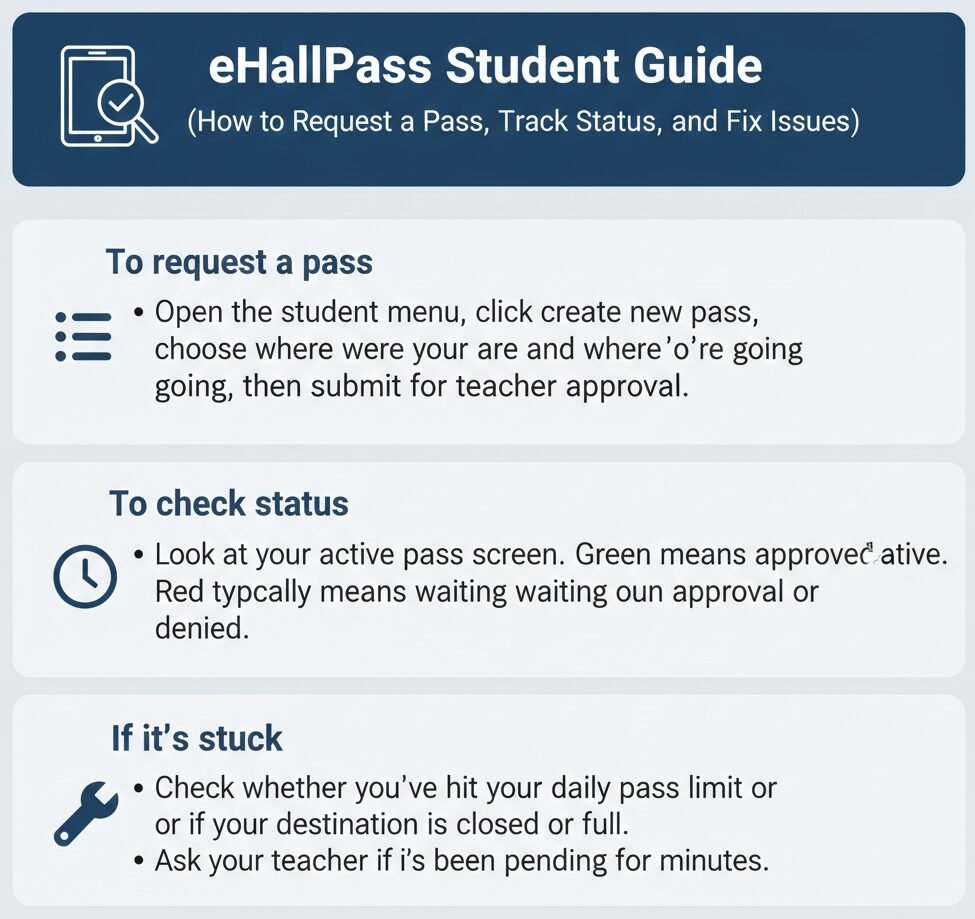
eHallPass Student Guide (How to Request a Pass, Track Status, and Fix Issues)
To request a pass:
Open the student menu, click create new pass, choose where you are and where you’re going, then submit for teacher approval.
To check status:
Look at your active pass screen. Green means approved and active. Red typically means waiting for approval or denied.
If it’s stuck:
Check whether you’ve hit your daily pass limit or if your destination is closed or full. Ask your teacher if it’s been pending for minutes.
What eHallPass is and what students use it for
Look, I’ll be straight with you—eHallPass is basically the digital version of those paper hall passes teachers used to write out by hand. Instead of walking up to your teacher’s desk and interrupting class to ask for a bathroom pass, you submit a request through your phone, Chromebook, or computer. Your teacher sees it on their dashboard and approves or denies it with one tap.
Schools use eHallPass to manage hallway movement electronically. The system tracks who’s out of class, where they said they were going, and how long they’ve been gone. Administrators can see active passes across the whole school, which helps during emergencies and gives them data on pass patterns throughout the day.
Students can request passes from school devices or personal devices, depending on your school’s policy. Some schools let you use your phone. Others require you to use a school Chromebook or computer in the classroom. Check with your teacher about device expectations before you submit your first request.
Here’s the thing though—rules and available destinations vary by school settings. Your school controls everything. The bathroom destinations your friend sees at another school might be different from yours. Daily pass limits differ by district. Some schools restrict passes during the first ten minutes of class. Others don’t. The system adapts to whatever policies your administrators configure.
Before you start (what you need)
Now, you might be wondering what setup you need to do before requesting your first pass. Not much, actually. But there are a couple things to confirm.
Login and access
Log in using your school credentials. Your school manages access to eHallPass, which means they create your account and assign your username and password. You might log in with a traditional username and password, or your school might use single sign-on through Google, Clever, Microsoft, ClassLink, or another identity provider.
If you don’t know your login credentials, ask your teacher or check your school’s student portal. Most schools distribute login information during orientation or the first week of school. Don’t try to create your own account—students can’t self-register. Your account has to be provisioned by school administrators.
Device expectations
Many schools recommend leaving devices in class when you’re approved for a pass. Between you and me, this confused a lot of students at first. You request the pass on your device, get approved, then leave the device at your desk and walk to the bathroom or nurse or wherever without it.
Why? Administrators can still see your active pass in the system whether you carry your device or not. Your approved pass shows up green in their monitoring dashboards. Some schools worry about device theft or students using phones inappropriately in hallways, so they prefer devices stay in classrooms.
Does your school require you to carry your device? It depends. Some schools configure digital passes that display on your phone screen for hall monitors to verify. Others use kiosk systems or just rely on teacher approval without requiring students to show anything. Ask your teacher what your school expects.
How to request a pass in eHallPass (step-by-step)
Here’s where we get into the actual workflow. This is the process you’ll use multiple times per day, so it’s worth understanding thoroughly.
Open the Student Pass Menu
Click to create a new hall pass from the student menu. After logging in, you’ll see your student dashboard. Look for a button that says “Create Pass,” “New Pass,” “Request Pass,” or something similar. It’s usually prominently displayed at the top of the screen because that’s the main thing students do in the system.
Click that button to start the request process. A form appears asking for information about where you’re going and why.
Choose your location and destination
Select where you are now and where you’re going. The form typically has two dropdown menus. The first asks “From” or “Current Location.” Select your current classroom. The second asks “To” or “Destination.” Choose where you need to go—bathroom, nurse, guidance counselor, main office, library, locker, or other destinations.
Some destinations may require a reason. If you select “Guidance Counselor” or “Main Office,” the system might ask you to type a brief reason. Bathroom passes usually don’t require additional explanation.
Be honest about your destination. If you say you’re going to the bathroom but actually stop at your locker, you’re creating a mismatch. That can cause issues if a hall monitor checks or if your teacher notices you’re taking way longer than a typical bathroom trip.
Submit for approval
Click Submit, Send, or Request to send your pass request to your teacher. The system adds your request to your teacher’s approval queue. You’ll see a status indicator showing the request is pending approval.
Your teacher receives a notification on their dashboard. How quickly they respond depends on what’s happening in class. During independent work time, approval might come within seconds. During direct instruction, it might take a couple minutes.
Approval happens (what you’ll see)
Teachers can approve in their dashboard or on the student device using a PIN. Most of the time, your teacher approves the request from their own computer. They see your name, destination, and pass count for the day.
Some schools configure PIN approval where the teacher enters a four-digit PIN directly on your device. This works well when teachers are circulating around the room.
Once approved, your screen turns green indicating you have an active pass. You can now leave class and head to your destination.
Understanding pass status (colors, active passes, daily count)
In our experience, understanding what the colors and indicators mean saves a lot of confusion. Let’s break down what you’ll see on your screen.
- Red during creation or waiting typically means your pass request is pending approval or has been denied. If you just submitted a request and see red, that’s normal—you’re waiting for your teacher to respond.
- Green indicates an active pass. Your teacher approved your request, and you’re authorized to be out of class. The green screen might show your destination, a countdown timer, and other details depending on your configuration.
- Daily Pass Counter: Some dashboards show how many passes you’ve used per day. This counter helps you track whether you’re approaching your limit. If your school caps bathroom passes at three per day, you’ll see “2 of 3 used” or similar. Pay attention to this so you don’t run out before the end of the day.
- Pass history shows all your previous requests including timestamps, destinations, and duration. Teachers and administrators can see this data too, so it creates accountability around pass usage patterns.
Appointment passes (future scheduled passes)
Here’s what most people don’t realize—eHallPass isn’t just for spontaneous bathroom or nurse trips. Your school staff can schedule appointment passes in advance for planned activities.
Staff can schedule appointment passes for students for things like counseling sessions, attendance office visits, early release, college rep meetings, club activities, or testing accommodations. These show up in your dashboard ahead of time so you know when to expect them.
The system can send notifications before the appointment time according to district tutorial examples. You might get a reminder five or ten minutes before so you don’t forget and miss your counseling session.
Appointment passes often automatically approve at the scheduled time without requiring teacher action. Your teacher is usually notified in advance that you’ll be leaving class at a specific time, so they’re not surprised when your pass activates.
Check your upcoming appointments section in your dashboard regularly. If you see an appointment you don’t recognize or can’t attend, tell your teacher or the staff member who scheduled it so they can cancel or reschedule.
Favorites (faster pass requests)
Well, it depends on your school’s configuration, but many districts enable favorites to speed up the pass request process for destinations you visit frequently.
Add favorites
Add frequently used destinations to your favorites list for quicker selection. Instead of scrolling through a long dropdown menu every time you need a bathroom pass, you can click your favorited bathroom and submit in two taps.
District tutorials show you can typically add up to 10 favorites. Choose the destinations you use most often—probably the bathroom closest to your classroom, the nurse if you have a medical condition, or the guidance office.
Adding favorites is usually done from your dashboard settings or pass creation screen. Look for a star icon, heart icon, or “Add to Favorites” button next to destinations. Click it to save that location.
Edit and organize favorites
You can edit and sort your favorites to prioritize the ones you use most. If you added ten favorites but only use three of them regularly, delete the others to keep your list clean. Reorder them so your most-used destination appears first.
Save changes after editing. Some systems require you to click a Save or Update button after modifying favorites. If you don’t save, your changes disappear when you close the screen.
Between you and me, favorites make the biggest difference when you’re in a hurry. Instead of fumbling through menus, you tap Favorites, select Bathroom, submit, and you’re approved in five seconds.
Common student problems and quick fixes
Honestly, this drives us crazy because most student issues have simple solutions, but students waste time worrying instead of just asking for help. Let’s tackle the common ones.
“My request is pending too long”
Ask your teacher to check their approval queue. Most of the time, your request is sitting there waiting but your teacher got distracted or didn’t hear the notification sound. A polite “excuse me, I submitted a pass request a few minutes ago” usually solves it immediately.
Check that you selected the correct destination. If you accidentally selected a closed location, your teacher might be confused. Cancel the request and submit a new one with the correct destination.
Be patient during tests or important instruction. Your teacher might be intentionally holding all pass requests until after a quiz or during a critical lesson moment.
“It won’t let me create a pass”
The system might be configured to check pass limits or destination availability. If you see “daily limit reached,” you’ve used all your allowed passes. If it says “destination unavailable,” the room you selected is closed or at capacity.
Read the error message carefully. “Pass requests blocked during first 10 minutes of class” means you need to wait. “Conflicting active pass” means you already have a pass in progress—end that one first.
If the error doesn’t make sense, ask your teacher or school IT for help. They can see your account settings and figure out what’s blocking your request.
“Do I need my phone in the hallway?”
Not required in most schools. Guidance suggests devices can stay in the classroom. Your teacher approved the pass, and hall monitors can verify with the central system if needed.
Some schools do require students to display passes on devices. If your school uses that method, you’ll be told during training. When in doubt, ask your teacher.
Privacy and location tracking (student-safe explanation)
Now, you might be wondering whether the school is tracking your exact location as you walk through the hallways. We’ve seen a lot of confusion and concern about this from students.
Product documentation and district FAQs state the system does not use device-based location services. In other words, eHallPass isn’t using your phone’s GPS or triangulating your position through Wi-Fi signals. The system records which destination you selected and timestamps showing when you left and returned, but it doesn’t track your physical movement through the building.
What administrators can see:
- Your active pass status
- The destination you selected
- How long you’ve been gone
- Your pass history over time
What they can’t see:
- Your real-time location as you move
- Stops at non-stated destinations
- GPS coordinates
For school-specific privacy policies, check your school’s student handbook or technology usage agreement. Privacy practices vary by district, and your school might have additional monitoring systems beyond eHallPass itself.
When to contact your teacher or school IT
Look, I’ll be straight with you—knowing who to ask makes the difference between getting help in two minutes versus staying stuck for an hour.
Contact teacher for:
- Pass approval delays
- Questions about pass rules
- Understanding denial reasons
- Favorites issues
- General “how-to” questions
Contact IT for:
- Login/Password problems
- Account access errors
- Blank screens or crashes
- Device compatibility
- SSO failures
Contact Office for:
- Privacy questions
- Pass accommodations
- Incorrect pass limits
- Behavioral issues
And vendor support? Usually you don’t contact them directly. Your school IT handles vendor communication.
FAQs
Log in to your student account. Click “Create Pass” or “New Pass” on your dashboard. Select your current location and destination from the dropdown menus. Click Submit to send the request to your teacher for approval. Wait for the green approval indicator, then leave class.
Green indicates an active, approved pass. Your teacher reviewed your request and granted permission for you to leave class. The green status means you’re authorized to be in the hallway heading to your selected destination.
Red typically means your request is pending teacher approval or has been denied. If you just submitted a request and see red, wait for your teacher to review it. If it stays red with a denial message, read the reason your teacher provided.
Look for a “Pass History,” “History,” or “Previous Passes” section in your student dashboard. This shows all your past requests including dates, times, destinations, status, and duration.
Appointment passes are scheduled in advance by school staff for planned activities like counseling sessions or college rep meetings. They appear in your upcoming appointments section and often auto-approve at the scheduled time.
Find destinations you use frequently and click the star, heart, or “Add to Favorites” icon next to them. Save your favorites list. Most schools allow up to 10 favorites.
Not required in most schools. District guidance suggests devices can stay in the classroom since administrators can see active passes in their monitoring systems. Ask your teacher about your school’s specific policy.
Common reasons include reaching your daily pass limit, selecting a closed destination, requesting during a blocked time (like the first 10 minutes of class), or having an active pass already in progress.
Pass limits vary by school policy. Some schools cap bathroom passes at three per day. Academic passes like nurse or guidance might not count toward the same limit. Check the pass counter in your dashboard.
Most systems allow you to cancel pending requests before your teacher approves them. Once approved and active, ending the pass usually requires returning to class and marking it complete.
Politely ask your teacher to check their approval queue. Say something like “I submitted a pass request a couple minutes ago, can you check if you received it?” Sometimes notifications get missed.
Pass duration varies by school configuration. Some schools set automatic expiration after 5, 10, or 15 minutes. Others let passes stay active until you manually end them. Check your screen for a countdown timer.
Contact your teacher for pass approval issues and usage questions. Contact school IT for login problems and technical errors. Contact your school’s main office for privacy questions or accommodations.
Need more help?
Check out our related guides: eHallPass Login, eHallPass Not Working, eHallPass Password Reset, and eHallPass SSO Login.