Teacher Not Seeing eHallPass Requests? Here’s Why (And How to Fix It)
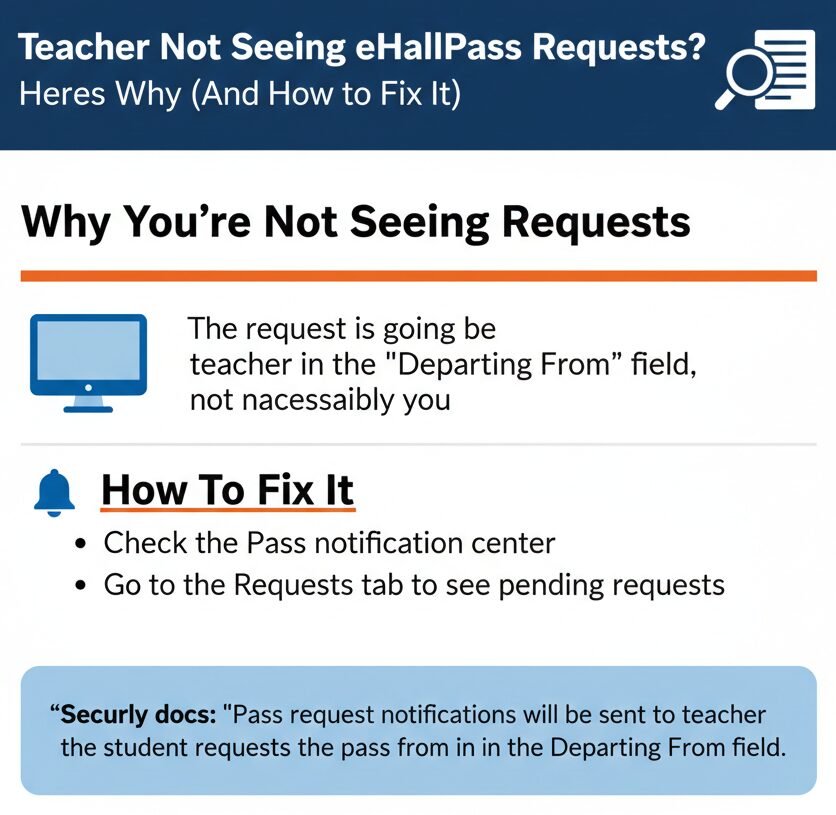
If you are not seeing eHallPass requests, the request is probably going to the teacher selected in “Departing From,” not necessarily you. Check the Pass notification center and go to the Requests tab to see pending requests. The Securly docs say “Pass request notifications will be sent to the teacher who the student requests the pass from in the Departing From field”.
What “Not Seeing Requests” Actually Means (Verified Definitions)
Here is the thing though. “Not seeing requests” does not mean the system failed. It usually means the request is going to a different teacher or you are not checking the right place.
Requests show up in two teacher places:
- Popup on the teacher’s screen (the class the student is leaving). The Securly docs say “When a student requests a hall pass, a popup will appear on the teacher’s screen whose class they are requesting to leave”.
- Pass notification center, Requests tab (pending requests list). The docs say “Any pending request will be shown in the Requests tab”.
Between you and me, most teachers miss requests because they close the popup and forget to check the Requests tab.
How Requests Are Routed (The Number One Cause)
“Departing From” Decides Which Teacher Gets It
Notifications route to the teacher in the “Departing From” field. The Securly Pass integration guide says “Pass request notifications will be sent to the teacher who the student requests the pass from in the Departing From field”.
Look, I will be straight with you. If the student picks Teacher A in the “Departing From” field, Teacher A gets the notification. Teacher B sees nothing.
Common mix-up: Students choose the wrong teacher in the “Departing From” field, then the “right” teacher sees nothing. The request is not missing. It went to the teacher the student selected. In our experience, this is the number one cause of “not seeing requests” issues. The request sent fine, just to a different teacher.
Co-Teacher Limitation (Very Common)
Why Co-Teachers Don’t See the Same Requests
Co-teachers do not receive the same notifications as the main teacher. The Securly docs say “A co‑teacher will not see the same notifications as the main teacher”.
That means if you are a co-teacher and the student selected the main teacher in “Departing From,” you will not get the popup. You will not see the request in your Requests tab.
Action: The student must pick you as the “Departing From” teacher if you are supposed to approve the request. Otherwise, you are not involved in the request and will not see it.
Honestly, this drives us crazy when co-teachers expect to see all the requests but do not understand the “Departing From” routing. Only the selected teacher gets the notification.
Teacher Checklist (Verified-Only Steps)
Use this simple checklist to troubleshoot when you are not seeing requests.
Step 1: Confirm ‘Departing From’ Selection
Confirm you are the ‘Departing From’ teacher for the student’s request. The docs say “Pass request notifications will be sent to the teacher who the student requests the pass from in the Departing From field”. If the student selected a different teacher, you will not see the request.
Step 2: Watch for the Popup
Watch for the popup when the student submits. The docs say “When a student requests a hall pass, a popup will appear on the teacher’s screen whose class they are requesting to leave”. This is the fastest way to see new requests.
Step 3: Check the Notification Center
If no popup, open Pass notification center, Requests tab and check pending requests. The docs say “Any pending request will be shown in the Requests tab”. If you closed the popup, the request is still there.
Step 4: Verify Co-Teacher Status
If you are a co-teacher, confirm whether the student selected you as “Departing From” (otherwise you won’t see it). The docs say “A co‑teacher will not see the same notifications as the main teacher”. You must be the selected “Departing From” teacher to receive the notification.
Well, it depends on your school’s setup, but typically this checklist catches 90% of “not seeing requests” issues.
Student Checklist (What the Student Can Do to Fix It)
- Confirm Departing From teacher: The Securly Pass integration guide says “Pass request notifications will be sent to the teacher who the student requests the pass from in the Departing From field”. If the student picked the wrong teacher, the request went to that teacher.
- No badge = Pending: Confirm the student understands: no badge yet = not approved yet (so they shouldn’t assume it failed). The docs say “Notice that there is no badge in Linda’s card view as her pass request has not been approved yet”. If the student does not see a badge, the request is pending, not failed.
Now, you might be wondering how the student can tell which teacher they selected. Most Pass interfaces show the “Departing From” field during request submission. Ask the student to check that field before submitting.
If the Requests Tab Is Empty (What That Tells You)
The notification center only shows requests and passes you are involved in. The Securly docs say “The Pass notification center contains the list of pass requests and active passes that you are involved in”.
Therefore:
- Either there are no pending requests. No students have submitted requests to you yet.
- Or the requests are going to another teacher (Departing From mismatch). The student selected a different teacher in the “Departing From” field, so the request went to them.
- Or there is a rostering or assignment mismatch (hand-off to IT). If multiple teachers report empty Requests tabs despite students submitting, IT should investigate class assignments and rostering.
Usually we see this when a new teacher is added to the roster but not set as the “Departing From” location in the Pass system.
Admin and IT Checks (Verified-Only Pointers)
For School IT and Admin
- Verify class assignments: Verify class assignments and rostering align so the correct teacher is the Departing From origin. The Securly Pass integration guide says “Pass request notifications will be sent to the teacher who the student requests the pass from in the Departing From field”.
- Confirm Location Setup: Confirm the teacher experiencing the issue is actually set as the Departing From location. The docs say “You can view active passes and requests at any time from the Pass notification center if you are the ‘Departing from’ location”.
- Broad Failures: If multiple teachers report missing requests, review Pass and Classroom integration. The docs say “The Pass notification center contains the list of pass requests and active passes that you are involved in”. Broad failures may indicate configuration or integration issues.
We believe strongly that IT should check rostering and “Departing From” mappings first. Most “not seeing requests” issues come down to incorrect class assignments or wrong teacher selection.
Decision Tree (Fast Troubleshooting Paths)
Teacher Didn’t Get It
Check if teacher is Departing From. (Docs: Notifications go to teacher in Departing From field).
If yes, check Requests tab. (Docs: Any pending request shown in Requests tab).
If co-teacher, confirm limitation. (Docs: Co-teacher won’t see same notifications).
Requests Tab Empty
Teacher likely not “involved in” the request. (Docs: Only shows passes you are involved in).
Verify student choice and verify roster mapping with IT. (Docs: Sent to teacher in Departing From field).
It can vary, but typically this decision tree resolves most “not seeing requests” issues in a few minutes.
FAQs: Teacher Not Seeing eHallPass Requests
You are probably not the teacher selected in the “Departing From” field. The Securly docs say “Pass request notifications will be sent to the teacher who the student requests the pass from in the Departing From field”. Also check your Pass notification center, Requests tab.
Open the Pass notification center and go to the Requests tab. The docs say “Any pending request will be shown in the Requests tab”. You can access the notification center from the floating Pass button icon.
No. The Securly docs say “A co‑teacher will not see the same notifications as the main teacher”. Only the teacher selected in the “Departing From” field receives the request notification.
Students should confirm they selected the correct teacher in the “Departing From” field. If the student picked the wrong teacher, the request went to that teacher.
It means you have no pending requests or you are not involved in any active passes. The Securly docs say “The Pass notification center contains the list of pass requests and active passes that you are involved in”.
No, unless the student selects you as the “Departing From” teacher. You only see requests where you are the Departing From location.
Check your Pass notification center, Requests tab. The request is still there even if you missed the popup.
Ask the student which teacher they selected. You can also check with school IT to verify Departing From location assignments.
Contact school IT. Broad failures may indicate a configuration or integration issue with rostering or class assignments.
No documented way to change it after submission. The teacher who received it can deny the request, and the student can submit a new one with the correct teacher.
Yes, if you are the Departing From teacher. Kiosk requests route the same way as device requests to the teacher in the Departing From field.
Related Fixes
Want more help with eHallPass and Securly Pass issues? Check out these related guides.