Clever Not Working for eHallPass: Official Fixes
If Clever is not working when you try to access eHallPass or Securly Pass, you are dealing with an SSO and district setup issue, not a password problem. Students and teachers do not create a separate Pass password when the district uses Clever.
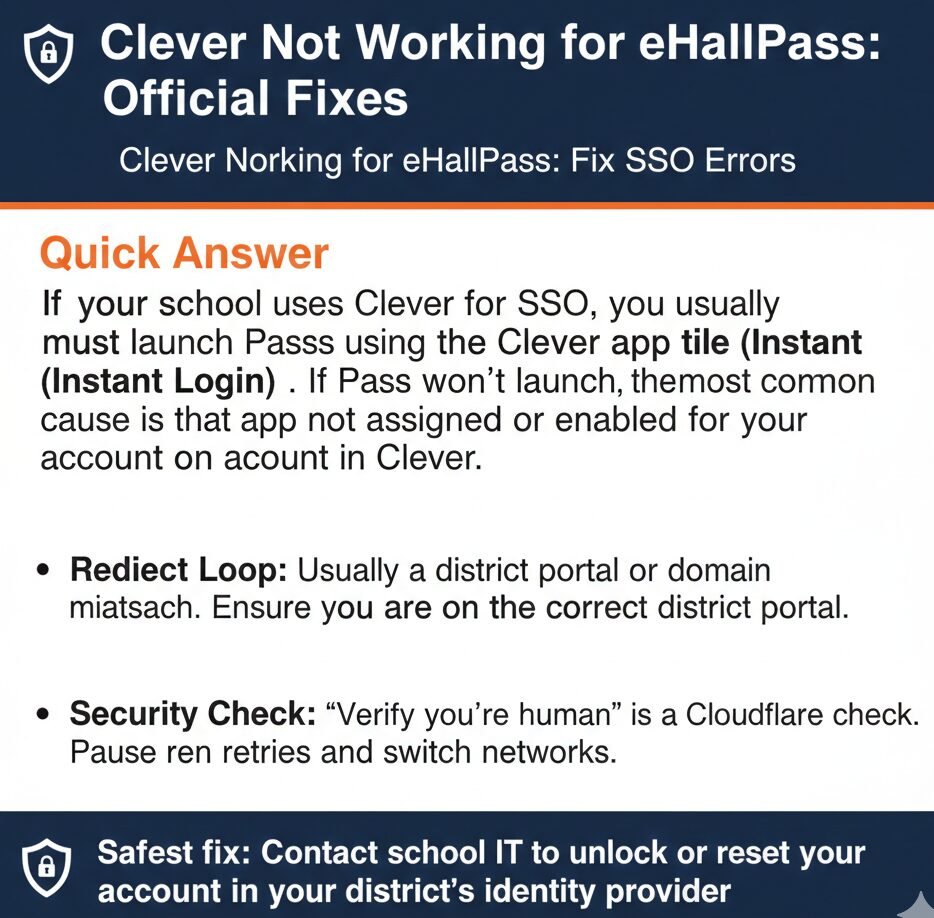
If your school uses Clever for login, you must launch Pass using the **Clever app tile (Instant Login)**. If Pass won’t launch, the most common cause is that the app is not assigned or enabled for your account in Clever.
Redirect Loop: Usually a district portal or domain mismatch. Ensure you are on the correct district portal.
Security Check: “Verify you’re human” is a Cloudflare check. Pause retries and switch networks.
What we can verify:
- Pass supports Clever Instant Login (SSO).
- Pass login page lists Clever as an official option.
- Clever users should not be added manually in Pass.
What we can’t (Not Verified):
- Exact Clever-side error text strings.
- Official browser/cache fixes specifically for Clever.
- Exact redirect timeout or lockout durations.
Confirm the Official Login Path
The Official Pass Login Page Mentions Third-Party Auth. The Securly Pass login page explicitly says “If your school uses a third party service for authentication (such as Google, Clever, Microsoft, ClassLink, or GG4L) please log in by choosing the appropriate option”. That means Clever is an official, supported login method.
Between you and me, this is where a lot of confusion starts. Students think they need a separate Pass password when they actually need to launch Pass from Clever.
Clever App Gallery Confirms “Instant Login” for Pass. The Clever App Gallery page for Pass says “Pass offers SSO through Clever Instant Login”. In plain language, that means when you click the Pass tile in Clever, Clever hands you into Pass using an SSO token. You do not type a password again.
The eHallPass login guide says “Clever integration streamlines the login process by automatically passing your login credentials to eHallPass”. That is the whole point of SSO.
What NOT to Do
- Do not keep refreshing fast. Rapid retries can trigger Cloudflare security checks. The support article says “You are receiving this message from Cloudflare because your connection is causing the Pass system to check for suspicious activity”.
- Do not assume you have a separate Pass password. The Securly Pass guide says “Manage password resets through your school’s Clever account. Contact your school’s IT admin for help”. That means your password lives in Clever or your district system, not in Pass.
How the Clever to Pass Launch Flow Works
Here is the thing though. Understanding the normal flow helps you spot where it breaks.
Log into your district Clever portal with your school account.
Click the Pass tile in the Clever App Gallery.
Clever hands you into Pass using Instant Login.
You land on the Pass dashboard.
This is the vendor-backed flow. If it breaks at any step, something is misconfigured or blocked.
Troubleshooting Decision Tree
Look, I will be straight with you. Pick the problem that matches what you see.
Missing/Greyed Out Tile
You log into Clever but cannot find the Pass icon or it is inactive.
Tile Exists but Fails
You click the tile but nothing opens or an empty page appears.
Redirect Loop
The browser bounces back and forth between Clever and Pass.
Error Message
You see “Wrong District”, “Wrong Portal”, or a Cloudflare check.
A) Not Launching Because Pass Tile Is Missing or Inactive
What It Usually Means (Verified)
The Pass app is not enabled or assigned to your account in Clever. The Securly support article says “Users can be added to the system individually from the ‘Main Users’ screen. It is highly recommended that you don’t use this method of adding users if the user is in… Clever… and this system is set up to sync users into Pass”. That confirms Clever is the expected source for user accounts.
If the app tile is missing, you are probably not assigned to the Pass app in Clever.
What the User Can Do
- Confirm you are logged into the correct district Clever portal. Some districts have multiple portals. Make sure you are not logged into a different district with a similar name.
- Search the Clever dashboard for “Pass” and check if it appears anywhere. If it does not show up at all, the app is not assigned to you.
What IT or Admin Should Check
- Enable Pass in Clever and assign it to the right schools, roles, or groups. The Clever App Gallery page confirms Pass is an available app.
- Confirm the user is active in Clever and included in the district’s setup for Pass. IT should verify the user exists in Clever and is included in the sync.
From what we have seen, this is the most common cause of “Clever not working” complaints. Students think Pass is broken when they just are not assigned to the app.
B) Not Launching Even Though the Pass Tile Exists
Likely Causes
Verified: App assignment or availability issues in Clever. Even if the tile is visible, the app might not be fully enabled or the integration might not be active.
Inference: Browser extensions or privacy settings interfering with the SSO handoff. We did not find official documentation confirming this, but it is a common pattern.
Safe User Checks
- Log out of Clever, log back in, then launch Pass again. This refreshes your SSO session.
- Try launching Pass from Clever on a different device (school laptop vs phone). If it works on one device but not another, the problem is device-specific.
IT or Admin Checks
- Confirm the Clever-to-Pass integration is active and assigned. IT should verify the integration is configured correctly.
- Check whether the issue affects one user or many users. If it is many users, it is probably a system-wide configuration issue.
C) Redirect Loop (Keeps Bouncing Back After Clever)
What It Often Points To
Verified theme: Domain or portal mismatch can prevent proper login. The Securly support article says “You may face problems logging into your Securly product if you are attempting to log in using a different domain address not registered with Securly”.
Inference: Stale SSO configuration or repeated handshake failure. Domain mismatches are a verified cause of login problems.
Now, you might be wondering what a “domain mismatch” looks like in real life. It means your Clever portal is set up for one domain (like district.edu) but Pass expects a different domain.
Safe User Checks
- Start from the district Clever portal with a fresh login, then launch Pass from the tile. Do not bookmark a direct Pass login link and try to use that.
- Inference: Try a different browser profile or private window as a test. Helps rule out cached SSO state.
IT or Admin Checks
- Verify the district domain and portal settings used for Pass match what the district has registered with Securly.
- Confirm Clever Instant Login setup is correct and consistent across campuses.
Honestly, this drives us crazy when schools set up Clever but forget to update the domain settings in Pass. The SSO handshake fails and students think Pass is broken.
D) Error Messages: Domain Mismatch or Security Checks
D1) “Wrong District” or “Wrong Portal” (Domain Mismatch Theme)
You are trying to sign in from an address or domain that is not registered for your district with Securly. The support article says “You may face problems logging into your Securly product if you are attempting to log in using a different domain address not registered with Securly”.
User checks: Make sure you are using the school’s correct Clever portal and school account. If you have accounts in multiple districts, confirm you are logged in with the right one.
IT checks: Confirm district domain settings and identity mapping. IT should verify that the domain used in Clever matches the domain registered with Securly.
D2) “Verify You’re Human” (Cloudflare Layer)
Explain that this is a security check that can appear before you reach the dashboard. The support article says “You are receiving this message from Cloudflare because your connection is causing the Pass system to check for suspicious activity”.
Here is what most people do not realize. This is not a login problem or a Clever problem. It is a network security check. Cloudflare sits in front of Pass and blocks suspicious traffic.
User checks: Stop rapid retries and wait a bit. Try a different network (school Wi-Fi vs home). If the message appears on school Wi-Fi but not at home, the school network might be triggering the check.
IT checks: Check network security filtering patterns (proxies, SSL inspection). Coordinate with vendor support if it is widespread.
E) Unauthorized After SSO (You Logged In, But Can’t Access Pass)
What This Usually Means (Verified)
The district expects users to be synced or provisioned via Clever into Pass, and you are missing or mis-roled. The support article says “It is highly recommended that you don’t use this method of adding users if the user is in… Clever… and this system is set up to sync users into Pass”. That means Clever is the source of truth for who has access.
If you authenticated successfully in Clever but Pass says unauthorized, your account is not synced correctly.
User Checks
- Ensure you are using your school account, not a personal Google or Microsoft account.
- Launch from the Clever tile, not a random third-party link. Use the official Clever portal and the Pass app tile.
IT or Admin Checks
- Confirm the user exists, is enabled, and is included in Clever sync for Pass. IT should check the Clever admin console to verify the user is rostered.
- Verify role mapping (student, teacher, admin) and that the account is not archived or pending.
Usually we see this when a student or teacher is brand new and the nightly Clever sync has not run yet. IT can manually add them or wait for the next sync.
FAQs: Clever Not Working for eHallPass
The most common reason is that the Pass app is not assigned or enabled for your account in Clever. The Securly support article confirms that users should be synced from Clever, not manually added. Ask your school IT to verify you are assigned to the Pass app in Clever.
A redirect loop usually points to a domain or portal mismatch. The Securly support article says “You may face problems logging into your Securly product if you are attempting to log in using a different domain address not registered with Securly”. Make sure you are logged into the correct district Clever portal and that IT has configured the correct domain settings.
This means you are trying to sign in from a domain or address that is not registered for your district with Securly. Confirm you are using the correct school Clever portal and school account. If the error persists, IT should verify the district domain settings.
The Cloudflare verification message means “your connection is causing the Pass system to check for suspicious activity”. Stop rapid login attempts and try a different network or device. If it persists, contact school IT to check network security patterns.
You are authenticated in Clever, but you are not provisioned or synced correctly in Pass. The support article says users should be synced from Clever into Pass, not manually added. Contact IT to verify you are rostered in Clever and included in the Pass sync.
No. The Securly Pass guide says “Manage password resets through your school’s Clever account. Contact your school’s IT admin for help”. Your password lives in Clever or your district system, not in Pass.
It can vary, but typically you can try basic checks like confirming you are on the correct Clever portal and launching from the Pass tile. If the app tile is missing, if you get redirect loops, or if you see unauthorized after login, IT must fix it.
Ask other students or teachers if they are having the same problem. If many people see the same error at the same time, it is probably a district-wide configuration or outage issue. IT should escalate to Securly support if it is widespread.
Probably. We did not find official documentation confirming this, but browser extensions or privacy settings can interfere with SSO handoffs. Try launching Pass in a private or incognito window to test. If it works there, a browser extension is likely blocking the SSO.
A greyed-out tile usually means the app is visible but not assigned or enabled for your account. Contact IT to verify you are assigned to the Pass app in Clever.
Related Guides
Want more help with eHallPass login and troubleshooting? Check out these related guides.
Safety and Accuracy Guardrails
- No universal lockout time or redirect timeout found.
- No exact Clever error strings unless quoted from official docs.
- Do not present cache or cookies as an official Clever-to-Pass fix.
- Access depends on district configuration and app assignment.