ClassLink Login Failed for eHallPass: Fix SSO Errors
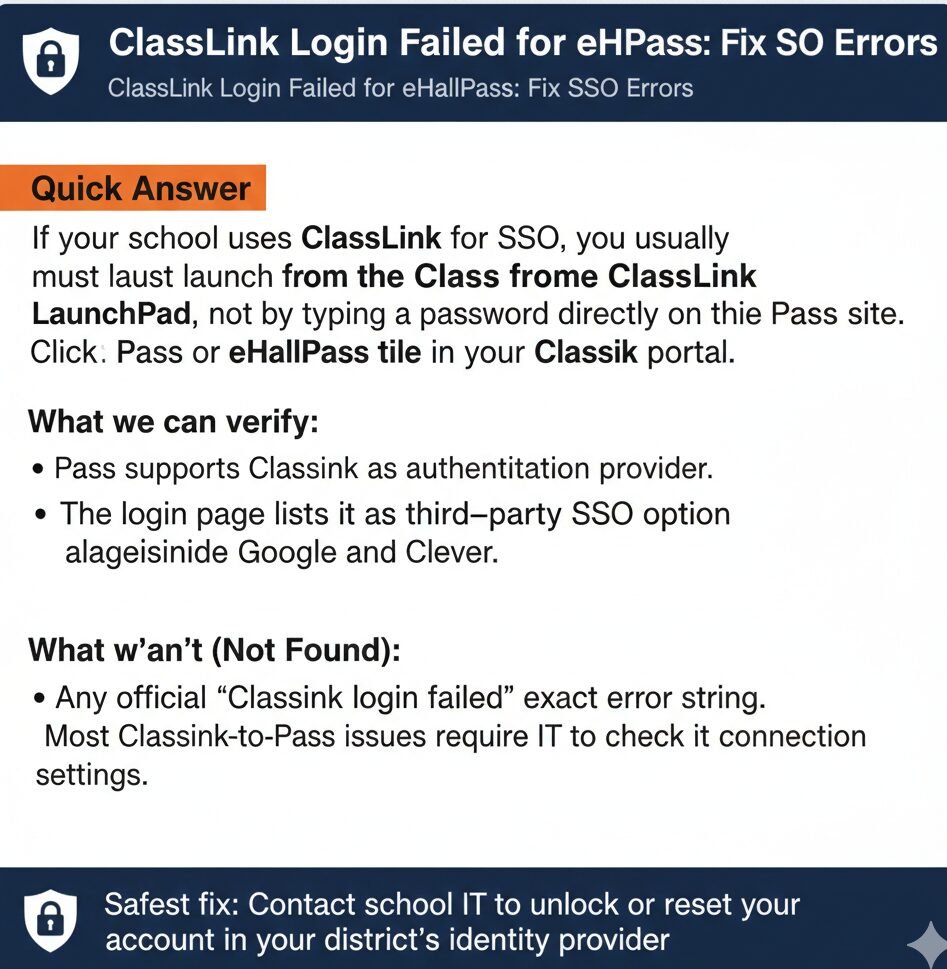
If your school uses ClassLink for SSO, you usually must launch Pass from the **ClassLink LaunchPad**, not by typing a password directly on the Pass site. Click the Pass or eHallPass tile in your ClassLink portal.
What we can verify:
Pass supports ClassLink as an authentication provider. The login page lists it as a third-party SSO option alongside Google and Clever.
What we can’t (Not Found):
Any official “ClassLink login failed” exact error string. Most ClassLink-to-Pass issues require IT to check connection settings.
Know Which Login Type You’re On
Step 1: Confirm Your District Uses ClassLink for Pass
The official Securly Pass login is at pass.securly.com. When you visit that page, you should see a message about third-party authentication.
If ClassLink is listed as an SSO option on the login page, use ClassLink SSO. Do not try to create or use a local Pass password unless your district explicitly allows it.
Here is the thing though. A lot of ClassLink login errors happen because students go directly to pass.securly.com and try to type a password. That is not how ClassLink SSO works. You need to launch Pass from inside ClassLink.
The ClassLink and Securly partnership announcement confirms ClassLink provides SSO and rostering for Securly products. That means your school account lives in ClassLink, and Pass uses that account to log you in automatically.
Between you and me, if you do not see ClassLink listed on the Pass login page, your district might use Google, Clever, Microsoft, or GG4L instead. Contact your school IT to confirm which login method to use.
The 60-Second Checklist (Safe User Checks)
Step 2: Try These User-Safe Checks First
Check A: Launch Pass from ClassLink LaunchPad (not from random links).
Log into your school’s ClassLink portal. Find the Pass or eHallPass tile in your app list. Click that tile. ClassLink will hand you into Pass using SSO.
Do not bookmark a direct pass.securly.com link and try to use that. Always start from the ClassLink LaunchPad.
Check B: Make sure you’re signed into the correct school ClassLink account or domain.
If you have multiple ClassLink accounts (like a parent who works at one school and has a child at another), confirm you are logged in with the right one. The login page warns that using a different domain can cause problems.
Check C: If you hit a Cloudflare or security verification screen, stop rapid retries.
The support article says “You are receiving this message from Cloudflare because your connection is causing the Pass system to check for suspicious activity”. Stop trying to log in repeatedly. Wait a few minutes and try again once. If it does not clear, try a different network (home Wi-Fi instead of school Wi-Fi, or vice versa).
What You Should NOT Do
- Do not keep retrying rapidly. Repeated login attempts can trigger or worsen Cloudflare security blocks.
- Do not reset passwords inside Pass if your district is ClassLink SSO-based. The Pass forgotten password page exists for local credentials only. If your district uses ClassLink, your password lives in ClassLink, not in Pass.
Honestly, this drives us crazy when students try to reset a Pass password that does not exist. If you use ClassLink login, your password is in ClassLink, not in Pass.
Symptom-Based Troubleshooting Map
Now, you might be wondering which fix to try based on what you are seeing. Pick your symptom below.
A) “ClassLink Login Failed” (Generic)
What it means: This is a broad symptom. It could mean the app is not enabled, the SSO connection is misconfigured, or you are using the wrong account domain.
What you can do:
- Confirm you are logged into the correct ClassLink portal and school account. Sign out of others.
- Launch Pass from the ClassLink tile, not from a direct link.
What IT should check:
- App enabled and assigned: Verify the Pass app is enabled in the ClassLink dashboard and assigned to the correct schools and roles.
- SSO connection validated: The Securly ClassLink docs say “Connecting to Classlink requires the assistance of Securly Support”. Confirm connection is active.
- User exists: Confirm the user is not archived or disabled in ClassLink.
B) “Pass Not Launching from ClassLink” (Click Tile → Nothing)
What it means: The Pass tile exists in your LaunchPad, but clicking it does nothing or gives an error. This points to enablement issues.
What you can do:
- Verify the Pass tile is visible. If it is grayed out or missing, you are not assigned to it.
- Try launching from another browser or device, still via ClassLink.
What IT should check:
- SSO connection: Connecting requires Securly Support’s assistance. This is not something users can set up alone.
- App publishing: Ensure the app is published and visible for the correct schools/grades.
- Firewall rules: Ensure pass.securly.com and subdomains are allowed and not blocked.
C) Redirect Loop (ClassLink → Pass → ClassLink)
What it means: You click the tile, it starts to load, then bounces you back to ClassLink. Usually an IT-level issue.
What you can do:
- Stop retries. Do not keep clicking the tile over and over.
- Confirm you are on the correct ClassLink portal, not a test portal.
- Report the exact time, device, and browser to IT.
What IT should check:
- Re-check the ClassLink SSO connection and configuration.
- Re-establish connection if it was established a long time ago and no longer works.
D) “Unauthorized After SSO” (SSO Works But No Access in Pass)
What it means: You authenticated in ClassLink, but Pass says unauthorized. Usually a provisioning or rostering mismatch.
What you can do:
- Confirm you are on the correct school account.
- Ensure you clicked the tile, not a bookmarked link.
- Contact IT.
What IT should check:
- Email matching: The Securly Sync docs say “The only necessary information needed in both systems is user emails, as these emails must match to properly sync data and actions”.
- Verify sync: Confirm the user is rostered in ClassLink and synced/added into Pass.
What School IT or Admin Should Verify (Admin Section)
IT Checklist (ClassLink + Pass)
- Connection setup: Integration requires assistance from Securly Support. IT cannot self-configure the ClassLink-to-Pass SSO connection.
- App visibility: Pass tile must be published to the correct schools, roles, and groups in the ClassLink dashboard.
- Roster identity match: Emails must match between ClassLink and Pass. “The only necessary information needed in both systems is user emails, as these emails must match to properly sync data and actions”.
- Security layer issues: If Cloudflare security prompts occur widely, IT should review network patterns. Widespread prompts suggest a network traffic issue.
When to Escalate (and What Details to Send)
When You Should Contact IT (or Vendor)
- If multiple users can’t launch Pass: System-wide configuration issue. IT must check connection and assignment.
- If you get stuck in a loop: Redirect loops are IT-level issues. Stop retrying.
- If you see security verification repeatedly: IT should investigate network security patterns.
What to Include in the Ticket
- Exact URL used: Did you go to pass.securly.com directly, or via LaunchPad?
- Screenshot: Capture any error messages shown.
- Device + Browser: Chromebook? laptop? phone? Chrome? Safari?
- Tile visibility: Can you see the Pass tile in your LaunchPad?
- Approximate time: IT can check logs if they know the time.
FAQs: ClassLink Login Failed for eHallPass
No. If your district uses ClassLink SSO, your password lives in ClassLink. The Pass forgotten password page is for local Pass credentials only. Contact IT for ClassLink password resets.
The login page says “If your school uses a third party service for authentication (such as Google, Clever, Microsoft, ClassLink, or GG4L) please log in by using your district’s SSO provider”. Launch Pass from ClassLink.
Success in ClassLink doesn’t mean you are rostered in Pass. Emails must match between both systems. Contact IT to verify your email sync.
Usually points to app assignment issues. IT should check if the Pass app is assigned to the student group in ClassLink.
Confirm the ClassLink-to-Pass SSO connection is established and active. This requires Securly Support’s assistance.
Not if your district enforces ClassLink SSO. Always launch from the ClassLink LaunchPad.
The app is not assigned to you. Contact IT to verify the app is published to your grade or role.
This is a security check, not a ClassLink problem. Stop rapid attempts and pause before trying once more.
Probably. Try launching Pass from ClassLink in a clean browser profile or incognito mode to test if tools are interfering.
No. “The Pass system is a web-based application and does not require the installation of any software”. Access it via web browser.
Safety Guardrails
- No specific lockout duration: We did not find documentation stating how long a ClassLink loop lasts.
- No universal error message: We found general guidance, but no exact “ClassLink login failed” error string.
- No local resets: Password resets for SSO users do not happen inside Pass.
- Configuration varies: What works at one school might not work at another; setup is district-specific.
Related Guides
Want more help with eHallPass login and troubleshooting? Check out these related guides.