eHallPass Account Locked: What It Means + How to Unlock
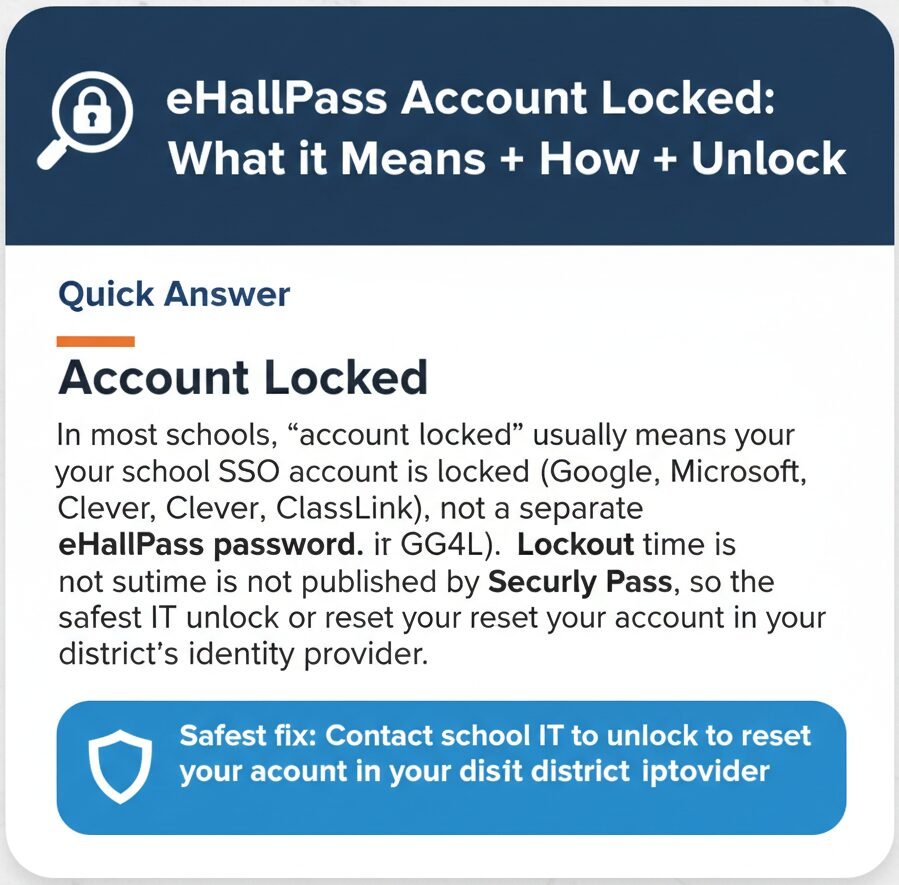
In most schools, “account locked” usually means your school SSO account is locked (Google, Microsoft, Clever, ClassLink, or GG4L), not a separate eHallPass password. Lockout time is not published by Securly Pass, so the safest fix is having school IT unlock or reset your account in your district’s identity provider.
What You Should Do First
- Confirm you are on the official login page: pass.securly.com.
- Identify whether you use SSO buttons or email and password: Look for Google, Microsoft, Clever, ClassLink, or GG4L buttons on the login page.
- If SSO: Stop retrying and contact school IT to unlock your account in the SSO system. Repeated failed attempts can make lockouts worse.
What “Account Locked” Means in eHallPass
Account Locked Usually Means Your SSO Account Is Locked
Here is the thing though. Securly Pass commonly uses third-party authentication providers like Google, Microsoft, Clever, ClassLink, and GG4L. That means when you log in to Pass, you are actually logging in through your school’s identity provider, not through a separate Pass password system.
Important: Pass does not publish a Pass-specific “too many attempts” lockout duration. We searched official Securly documentation and found nothing stating how long a lockout lasts or exactly how many attempts trigger it. The lockout rules are typically set by your district’s SSO provider, not by Pass itself.
Between you and me, this is where most confusion happens. Students think Pass locked them out when it is actually their Google Workspace or Microsoft account that is locked.
Two Different Lockout Types (Don’t Mix Them)
- SSO lockout (most common): Your district login account (Google, Microsoft, Clever, ClassLink, or GG4L) is locked because of too many failed login attempts. This is managed by your district IT, not by Pass.
- Local Pass credentials (less common): Only applies if your district enables direct email and password login on Pass. Even in this case, we did not find official documentation stating how long a lockout lasts or how to unlock it beyond contacting IT.
Usually we see schools use SSO, so the lockout is almost always on the SSO side.
How to Know What Kind of Lockout You Have
Look, I will be straight with you. Follow this decision tree and you will save yourself a lot of frustration.
- If you see SSO buttons (Google, Microsoft, Clever, ClassLink, GG4L) on the login page: It is almost always an SSO-side lockout. Pass is just redirecting you to that provider for authentication. The lockout happened in Google, Microsoft, Clever, ClassLink, or GG4L, not in Pass itself.
- If you log in with email and password directly on Pass: You can try the Forgot Password page at pass.securly.com/forgotten-password. However, lockout rules and duration are still NOT FOUND in official documentation. If that does not work, contact IT.
- If you see a “verify you’re human” or security check message: This may be Cloudflare protection, not a true account lockout. The support article says “You are receiving this message from Cloudflare because your connection is causing the Pass system to check for suspicious activity”. That is different from a password lockout.
Fix #1: If Your School Uses Google Login
What Causes the Lock
Lockouts with Google login are typically caused by too many failed login attempts on the Google account side. This is district-managed, not Pass-specific.
From what we have seen, a common cause is an old device (like a phone or iPad) that still has your school account saved with an old password. The device keeps trying to log in automatically and triggers a lockout.
What to Do
- Stop retrying immediately. Repeated failed attempts can extend the lockout period.
- Ask school IT to reset or unlock your account in Google Workspace admin tools. The Securly docs say “Go to Users, then Rostered Students, click the student and select Reset student Google password”. That is an admin action, not something students can do themselves.
- Update the new password on every device that uses your school account. This includes your phone mail app, Chromebook, iPad, laptop, and any browser profiles. If you do not do this, the old device will keep locking you out.
- Remove the school account from devices you no longer use. If you have an old phone or tablet sitting in a drawer, it might still be trying to sync and causing lockouts.
Honestly, this drives us crazy when students skip the “update all devices” step. You can get unlocked by IT, change your password, and then get locked again an hour later because your phone is still using the old password.
Fix #2: If Your School Uses Microsoft or Office 365 Login
What Causes the Lock
Microsoft-side lockouts are district-controlled. Pass does not publish its own lockout window for Microsoft accounts, so the timeout depends on your district’s Azure AD or Entra ID settings.
What to Do
- Contact IT to unlock or reset your account in Microsoft Entra ID or Office 365. The Securly support article for another product shows the pattern: “Click Forgot Password hyperlink; you will be redirected to the Recover Password page”. This is an SSO-pattern reference, handled in the Microsoft admin portal.
- Check for old devices: Just like with Google, an old device trying to sync with your school account can trigger repeated lockouts.
- Update all apps: This includes Outlook, Teams, OneDrive, and saved logins in Chrome, Edge, or Safari.
It can vary, but typically IT can unlock your account in a few minutes once they access the admin portal.
Fix #3: If Your School Uses Clever
Key Point
Your password and access are managed through Clever or your district’s systems. Pass just redirects you to Clever for authentication. Pass does not store a separate password for you.
Steps
- Try logging into Clever directly at your school’s Clever portal. If you can log in there, the problem might not be a lockout.
- If you are locked out of Clever, IT must unlock or reset your account on the Clever or district side. The Securly Pass guide says “Manage password resets through your school’s Clever account. Contact your school’s IT admin for help”.
- If you can sign into Clever but Pass still fails: This is likely a provisioning or roster issue, not a lockout. Your account might not be synced correctly between Clever and Pass. Contact IT to verify.
In our experience, Clever lockouts are less common than Google or Microsoft lockouts because many schools use Clever as an SSO hub on top of Google or Microsoft. But if your district uses Clever as the primary identity provider, the lockout happens there.
Fix #4: If Your School Uses ClassLink
Key Point
Lockouts are handled in ClassLink or your district’s account systems. Pass does not “unlock” ClassLink accounts.
Steps
- Try logging into ClassLink LaunchPad directly. If you can log in there, the issue might not be a lockout.
- If you are locked out of ClassLink, IT resets or unlocks your account on the ClassLink or district side. The Securly Pass guide says “Resetting passwords managed through the Classlink portal or your school’s IT team”.
- After unlock, use the same SSO route: Stick with the ClassLink button on pass.securly.com.
Usually we see ClassLink lockouts resolved quickly because many districts configure ClassLink to sync with Google or Microsoft.
Fix #5: If Your School Uses GG4L
Here is what most people do not realize. We could not find GG4L-specific unlock steps in official Pass documentation. The Pass login page lists GG4L as an SSO option, but no step-by-step unlock instructions are publicly available.
Safe guidance: Contact your district IT team to confirm GG4L provisioning and unlock your account. The Securly docs say “If you aren’t sure which identity provider to use, contact your school’s IT team”. That applies to GG4L lockouts as well.
Verify your domain: The support article says “You may face problems logging into your Securly product if you are using a different domain”. Make sure you are logging in with your school email, not a personal account.
Fix #6: Use “Forgot Password” (Only If You Log In Directly on Pass)
This section only applies if your district uses local Pass credentials. If your login page shows SSO buttons, skip this section.
Steps
- Visit the Forgot Password page at pass.securly.com/forgotten-password. The page says “Enter your email to reset your password”.
- Enter your school email to request a reset link. This should be the email tied to your Pass account.
- If the email does not arrive: Check your spam or quarantine folders. Ask IT to allow email delivery from Pass reset notifications.
Between you and me, most schools use SSO, so the local password reset option is not available. We included this section for completeness, but chances are you will not need it.
If You See a Security or “Suspicious Activity” Message
Now, you might be wondering if the “verify you’re human” message is the same as an account lockout. The answer is no. This is usually a security layer check, not a password lockout.
The Securly support article says “You are receiving this message from Cloudflare because your connection is causing the Pass system to check for suspicious activity”. This can happen if you are on a shared network, using a VPN, or if multiple people are logging in from the same IP address.
User-Safe Steps
- Pause login attempts and wait a few minutes. The check might clear on its own.
- Try a different browser or profile. Sometimes cached data triggers security checks.
- Use the official login URL. Make sure you are on pass.securly.com and not a phishing site.
- Contact school IT if the message persists. IT can check network patterns.
How to Stop Getting Locked Out Again
Here is where people make the same mistake over and over. They get unlocked, change their password, and then get locked again the next day. Why? Because they did not update all their devices.
Common District Pattern
An old device keeps trying to log in with the wrong password. The district IT page we reviewed says “My District Account Keeps Getting Locked Out” and explains that stale passwords on old devices are the main cause.
Checklist to Prevent Repeat Lockouts
- Update your password on all devices and saved accounts. This includes:
- Your phone mail app (Gmail, Outlook, etc.)
- Chromebook or laptop Chrome profile
- iPad or tablet apps
- Any saved passwords in browsers (Chrome, Safari, Edge, Firefox)
- Desktop mail clients like Outlook or Thunderbird
- Any other apps that sync with your school account
- Remove the school account from devices you no longer use. Sign out or wipe old phones/tablets sitting in a drawer.
- Do not rapid fire login attempts. Stop after two or three tries and contact IT.
- Ask IT to identify the problematic device. They can often see which IP or device is causing the login loop.
We believe strongly that updating all devices is the single most important step to prevent repeat lockouts. You cannot fix this problem halfway.
FAQs: eHallPass Account Locked
Lockout time is not published for Pass. Lockout length is usually set by your district’s SSO provider (Google, Microsoft, Clever, ClassLink, or GG4L), not by Pass itself. Contact school IT to unlock your account.
If your school uses SSO: Usually no. IT must unlock or reset your district account. If your school uses local Pass login: You can try the Forgot Password page at pass.securly.com/forgotten-password.
Another device or app is probably still using the old password. Check your phone, tablet, and any saved browser profiles. If an old device keeps trying to sync, it will trigger lockouts even after you change your password.
Probably not. This is likely a roster or provisioning issue, not a lockout. Your account might not be synced correctly. Contact IT to verify your roster and permissions.
Not necessarily. The “verify you’re human” message is usually a security check from Cloudflare, not a password lockout. It can happen if you are on a shared network.
It depends on your district’s setup. Some schools allow self-service reset for staff but not students. Ask your IT department what your school’s policy is.
Thresholds are set by your district’s SSO provider. We did not find an official number in Securly Pass documentation. Contact IT to find out your school’s policy.
Not directly through Pass. Lockouts are managed by district IT. Parents should contact the school IT help desk.
Contact your school IT team for help resetting or unlocking your GG4L credentials. We did not find official GG4L-specific unlock instructions.
NOT FOUND in official documentation. Your safest option is to contact IT to unlock your account.
Related Guides
Want more help with eHallPass login and troubleshooting? Check out these related guides.