eHallPass Admin Guide: How to Set Limits, Manage Destinations, and Run Reports
If you’re managing eHallPass for your school or district, you need verified information about limits, destinations, reports, and monitoring tools. This guide focuses on what admins actually control and what varies by local configuration.
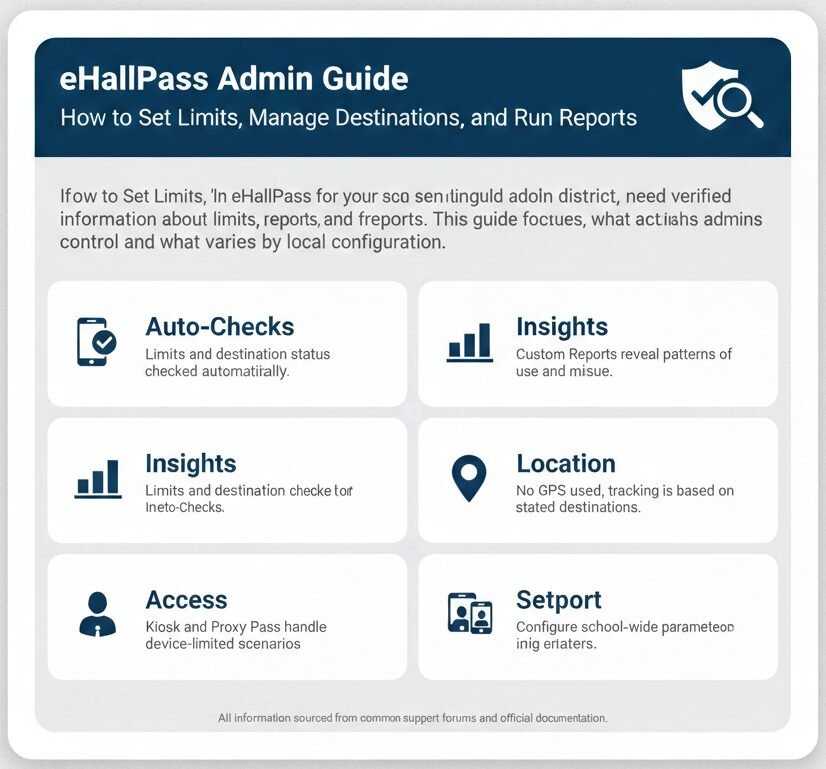
Auto-Checks
Limits and destination status checked automatically.
Insights
Custom Reports reveal patterns of use and misuse.
Location
No GPS used; tracking is based on stated destinations.
Access
Kiosk and Proxy Pass handle device-limited scenarios.
What eHallPass Is for Admins
Look, I’ll be straight with you—eHallPass is a digital hall pass system that centralizes student pass requests and active pass visibility across your school. Instead of relying on paper passes that get lost or forged, the system logs every request, approval, and timestamp digitally.
The system tracks pass timestamps and stated destinations, not GPS or device location data. When a student requests a bathroom pass, the system logs the approval time, the destination the student selected, and when the pass ends. It does not track the student’s physical movement through hallways using GPS, Wi-Fi triangulation, or any other location-tracking technology.
In emergencies, admins can see where students are supposed to be by building or room. This visibility is based on active pass data showing which students have approved passes and what destinations they selected. During a lockdown or fire drill, you can quickly identify who’s out of their assigned classroom and where they said they were going.
What eHallPass does NOT do:
It does not use device-based location data or any location-tracking software or hardware. This is stated explicitly in the vendor’s product brief. When parents or staff ask about “tracking,” you can clarify this distinction. The system tracks pass requests and stated destinations, not real-time student locations.
Admin vs Teacher: Who Sees What and Why It Matters
Now, you might be wondering how admin visibility differs from teacher visibility. Here’s the breakdown based on official documentation.
Teachers handle approve or deny actions and ending passes in their view. When a student submits a pass request, the teacher sees a popup with student name and destination. The teacher clicks Approve or Deny. The teacher also ends passes when students return to class. These are the day-to-day classroom management actions.
Admins focus on rules, destinations, reports, and oversight. You set pass limits by student or location. You configure which destinations exist and when they’re marked as closed or full. You run Custom Reports to analyze pass patterns across the school. You monitor active passes campus-wide rather than just for a single class.
Visibility depends on district role configuration. Some schools give assistant principals broad monitoring access. Others limit admin views to specific buildings or grade levels. The exact permissions you have depend on how your district configured user roles and access rights in the system.
Between you and me, this role distinction matters when troubleshooting. If a teacher complains they can’t see passes for a co-taught class, that’s a role and roster configuration issue admins need to fix. If a student complains they can’t request a pass to the guidance office, that’s probably a limit or destination rule admins configured.
The Pass Notification Center (Core Admin Monitoring Hub)
Here’s what most people don’t realize—the Pass notification center is the central interface for managing pass requests and monitoring active passes. It’s not just for teachers. Admins use it too, with broader visibility based on their role.
Requests tab: managing pending requests
A red dot appears on the Pass notification center button when there’s a pending request. This visual indicator lets you know at a glance whether action is needed without constantly refreshing your view.
The Requests tab holds all pending requests that haven’t been approved or denied yet. If a teacher dismissed a popup without acting on it, the request stays in this tab waiting for approval or cancellation.
Popup requests can still be handled in the notification center if ignored. This fallback ensures requests don’t get lost just because someone closed a popup during a busy moment. Teachers or admins can come back to the Requests tab later and process everything that’s pending.
My Active Passes: monitoring what’s happening now
This section shows active passes including auto-passes. Every pass that’s been approved and hasn’t been ended yet appears here with student name, destination, and elapsed time.
You’ll also see passes where you are the destination teacher or staff member. For example, if you’re a nurse and students are coming to the health office from various classrooms, those passes show up in your My Active passes view even though you didn’t originate the approval.
Why active monitoring matters:
Safety and congestion control. During passing periods, you can see if too many students are trying to visit the same bathroom at once. During instruction time, you can identify students who’ve been out for unusually long periods. In emergencies, you know who’s out of their assigned classroom and where they said they were heading.
Approvals and Declines: What Admins Should Understand
Honestly, this drives us crazy because admins sometimes think they need to approve every pass manually. You don’t. The workflow is designed for teachers to handle day-to-day approvals while admins monitor patterns and enforce rules.
Student submits a request from their device by selecting a destination and clicking to request approval.
A popup appears on the teacher’s screen showing the student’s name and destination. The teacher sees this notification in real time.
Teacher clicks Approve or Deny. One click and the student gets immediate feedback on their device.
If the popup gets closed, the request remains in the notification center. This is the safety net. Teachers can batch-process pending requests from the Requests tab when they have a moment rather than being forced to respond to every popup instantly.
What’s included in the request: Always student name and destination. Depending on configuration, you might also see pass type, reason, expected return time, or how many passes the student has used today.
Admin tip: Policy vs Training
When should you tighten policy versus train staff workflows? If you’re seeing high denial rates, investigate whether teachers understand the pass categories. If you’re seeing students repeatedly hitting daily limits, review whether those limits align with legitimate needs like medical accommodations. Use reporting data to guide policy decisions rather than anecdotal complaints.
Ending Passes and Why It Affects Reporting Accuracy
Well, it depends on how diligent your staff is about ending passes, but this is where data quality lives or dies.
The “End pass” action happens from the My Active passes section. A teacher or destination staff member hovers over an active pass and clicks the End pass button. The system logs the end time and removes the pass from the active list.
Why ending passes matters for admins: Clean data, safety visibility, and accurate pattern analysis. If passes don’t get ended, your active pass count stays artificially high. During an emergency, you’ll see “ghost passes” making you think students are out of class when they actually returned 20 minutes ago. Your Custom Reports will show inflated pass durations that don’t reflect reality.
In our experience, schools that train staff on ending passes see much better reporting outcomes. It takes two seconds to end a pass when a student returns. Make it part of your staff onboarding and include it in periodic reminders.
Pass Limits and Rule Enforcement (Admin Controls)
Here’s the thing though—this is where your power as an admin lives. You configure the rules and the system enforces them automatically.
Limit passes by student or by location
You can set limits based on individual students or specific locations. For example, you might configure “maximum three bathroom passes per student per day” or “maximum two students in the guidance office at once.” The system checks these limits whenever a new pass is requested.
What it means in practice: Reducing misuse and congestion. A student who’s already used three bathroom passes gets blocked from requesting a fourth. A student trying to visit a full guidance office sees a message that the destination is at capacity. You’re not relying on teachers to manually track this—the system enforces it.
Keep in mind that limits vary by district policy. Some schools set strict limits. Others allow unlimited passes but monitor patterns through reporting. Some schools have different limits for different student groups based on medical accommodations or behavioral plans.
Time thresholds and system tagging
The system can display a yellow tag when a pass exceeds a threshold you define. For example, if you set a 10-minute threshold for bathroom passes, any pass that’s been active longer than 10 minutes gets tagged. This visual indicator helps teachers and admins spot potential issues without constantly watching the clock.
“System ended” status appears when the system automatically ends a pass based on your school’s threshold. If you configure a hard cap like “all passes must end within 15 minutes,” the system will automatically close passes that exceed that duration. The pass history shows “System ended” so everyone knows it wasn’t manually closed by a teacher.
Emphasize to your staff that thresholds are set by the school, not by the vendor. If teachers complain that passes end too quickly or students complain they didn’t have enough time, that’s a configuration discussion with your admin team.
Destinations: Closed or Full Checks and Location Management
Look, I’ll be straight with you—destination management is one of the most underutilized admin features. Schools that configure this well see huge reductions in hallway congestion and conflicts.
The system automatically checks whether a destination is closed or full before allowing a request. When a student tries to request a pass, e-hallpass verifies that the destination is open and hasn’t reached its capacity limit. If the destination is closed for cleaning or temporarily locked down, or if it’s already at max capacity, the system blocks the request and notifies the student why.
Why it’s useful: Prevents crowding and supports safety. You don’t want six students showing up at the nurse’s office simultaneously when the nurse can only handle two at a time. You don’t want students requesting bathroom passes to a restroom that’s closed for maintenance.
Destinations available vary by school configuration. Some schools have bathroom destinations labeled by wing and floor. Others use generic “Restroom” categories. Some schools track counselor visits separately from attendance office visits. Configure your destinations to match how your staff thinks about school geography.
Reports and Analytics (Custom Reports + Key Admin Use Cases)
Now, you might be wondering why reporting matters so much. Between you and me, this is where eHallPass transforms from “digital hall pass” into “student behavior analytics tool.”
What Custom Reports can show (verified)
- Who is requesting passes: Pull reports showing pass frequency by student, identifying students who request passes far more or far less than their peers.
- Who is granting passes: Analyze which teachers approve the highest percentage of requests versus which teachers deny more frequently.
- Use and misuse patterns: Are bathroom pass requests spiking on Fridays? Is the nurse’s office overwhelmed during third period? Custom Reports surface these patterns.
Practical admin workflows using reports
Identify students out for extended periods. Run a report showing students whose average pass duration exceeds a threshold you define. Maybe a student consistently takes 20-minute bathroom passes due to an undisclosed medical issue. That report flags the pattern so you can follow up with support rather than discipline.
Identify patterns by location. Pull destination-specific reports to see which bathrooms or offices are busiest. If one bathroom gets 80% of requests while another sits empty, consider whether signage, location, or condition is driving that imbalance.
Use results to inform policy, staffing, and supervision. If reports show huge pass spikes during specific periods, consider whether passing period timing or class scheduling is contributing. Data drives better decisions than assumptions.
Reporting caveat: Exact report types and filters vary by district configuration. Some deployments offer pre-built report templates. Others require custom queries. Check with your district IT about what reporting capabilities your role includes.
Device-Access Features: Pass Kiosk, Proxy Pass, Auto Pass
Here’s what most people don’t realize—eHallPass has specialized features designed for situations where students don’t have devices or where self-service workflows make sense.
Pass Kiosk
Pass Kiosk is designed for students without devices. If your school doesn’t issue Chromebooks to every student, Pass Kiosk provides an alternative way to request passes and check in.
It provides request and check-in access through shared kiosk stations. Students walk up, enter credentials or scan a badge, and submit the request. The teacher approval workflow is identical to device-based requests—the teacher sees a popup and approves normally.
Avoid claiming specifics about printing or physical placement unless your district’s setup documentation confirms those details. The vendor’s product brief only states that Pass Kiosk provides digital request and check-in access.
Proxy Pass
Proxy Pass lets teachers create passes when students don’t have devices. Instead of the student submitting a request, the teacher creates the pass on the student’s behalf from the teacher dashboard.
Common scenarios: A student’s device died. A kindergartner who doesn’t have a device. An emergency situation. The teacher selects the student, chooses a destination, and submits.
Important clarification: Proxy Pass should still follow district rules. Don’t tell staff that Proxy Pass “overrides limits” unless you have explicit documentation.
Auto Pass
Auto Pass allows students to start or stop passes themselves without waiting for real-time teacher approval. It’s designed to reduce classroom disruption during independent work time.
Even though students control the timing, the system still sends a pass request to the teacher. The teacher sees the request and can monitor or end the auto-pass just like any other pass. This isn’t invisible movement—it’s still tracked and visible.
Auto Pass appears in the same active pass monitoring interfaces. Admins and teachers see auto-passes mixed with regular passes in the My Active passes section.
Privacy, Tracking, and What to Tell Parents and Staff (Verified)
Honestly, this drives us crazy because there’s so much misinformation floating around about what eHallPass does and doesn’t track. Let’s get this absolutely clear based on official vendor documentation.
The system tracks granted time, stated destination, and arrival times. When a pass is approved, the system logs a timestamp. When a student selects a destination, that choice is recorded. These three data points create the audit trail.
The system does not use device-based location data or tracking hardware or software. This is stated explicitly in the Securly e-hallpass product brief. It does not use GPS. It does not triangulate student positions through Wi-Fi signals. It does not track students’ physical movement through hallways.
“Building or room visibility is based on pass system data, not GPS.” When documentation mentions that admins can identify where students are by building or room in an emergency, that refers to looking at active pass records showing which students have approved passes and which destinations those passes list. It’s not live location tracking.
What Varies by District Configuration
Look, I’ll be straight with you—one of the biggest sources of confusion comes from people assuming that what they see in one district is identical across all districts. It’s not.
- Pass limits and time thresholds: Your district decides maximum passes per student, maximum destination capacity, and thresholds for auto-ending passes.
- Destinations available: Your school configures names, categories, and capacity limits. These are local choices.
- Staff roles and visibility: Role-based visibility is configured by district IT. Some schools give co-teachers equal rights; others do not.
- Enabled Features: Kiosk, Proxy Pass, and Auto Pass are optional. Don’t assume every school uses them.
- Notification behavior: How popups route and who sees which alerts depends on role configuration and SIS integration.
Troubleshooting for Admins (Safe + Practical)
Most of the time, eHallPass works smoothly. When it doesn’t, here’s how to troubleshoot based on official documentation.
Not seeing requests you expect?
Check the Pass notification center. Open it and look for the red dot indicator. Check the Requests tab to see if pending requests are queued there even if you didn’t see popups.
Not seeing expected active passes?
Verify role, class, and destination configuration. If you’re supposed to see passes where you’re the destination teacher but they’re not showing up, the problem is likely in role-based access. Contact your district eHallPass administrator.
Dashboard not updating or loading?
Refresh your browser and try again. If the issue persists, log out and log back in. If that doesn’t work, contact your district IT help desk with details. Some issues require backend troubleshooting.
Teachers reporting they don’t see requests?
First confirm the teacher is logged into the correct account. Then verify class rosters are accurate in your student information system (SIS). Pass requests route based on class enrollment data.
FAQ
Admins can generate Custom Reports showing who is requesting and granting passes. Reports help you understand patterns of use and misuse across students, teachers, and destinations.
Yes. eHallPass lets schools limit passes by individual student or by location. The system checks those limits automatically whenever a new pass is requested.
When a student requests a pass, eHallPass automatically checks whether the destination is closed or at capacity. If it is, the system blocks the request and notifies the student.
No. The system tracks pass grant times and stated destinations, but it does not use device-based location data or GPS tracking. This is stated explicitly in vendor documentation.
Pass Kiosk is a mode that lets students without devices request passes and check in. Schools typically deploy kiosks in common areas for shared access.
Proxy Pass allows teachers to create passes on behalf of students who do not have a device available. It still follows district limits and appears in the same reporting views.
Auto Pass allows students to start or stop passes themselves without real-time teacher approval. It is still tracked and visible in management views.
Open the Pass notification center by clicking its button on your dashboard. A red dot appears when there are pending items. Go to the Requests tab to interact with them.
Check the My Active passes section of your Pass notification center. It shows currently active passes including student name, destination, and elapsed time.
“System ended” status appears when the system automatically closes a pass based on a time threshold set by your school (e.g., auto-ending after 15 minutes).
Need more help?
Check out our related guides: eHallPass Teacher Guide, eHallPass Student Guide, eHallPass Login, and eHallPass Password Reset.