eHallPass Dashboard Not Loading (Blank Screen): Official Fixes for Securly Pass
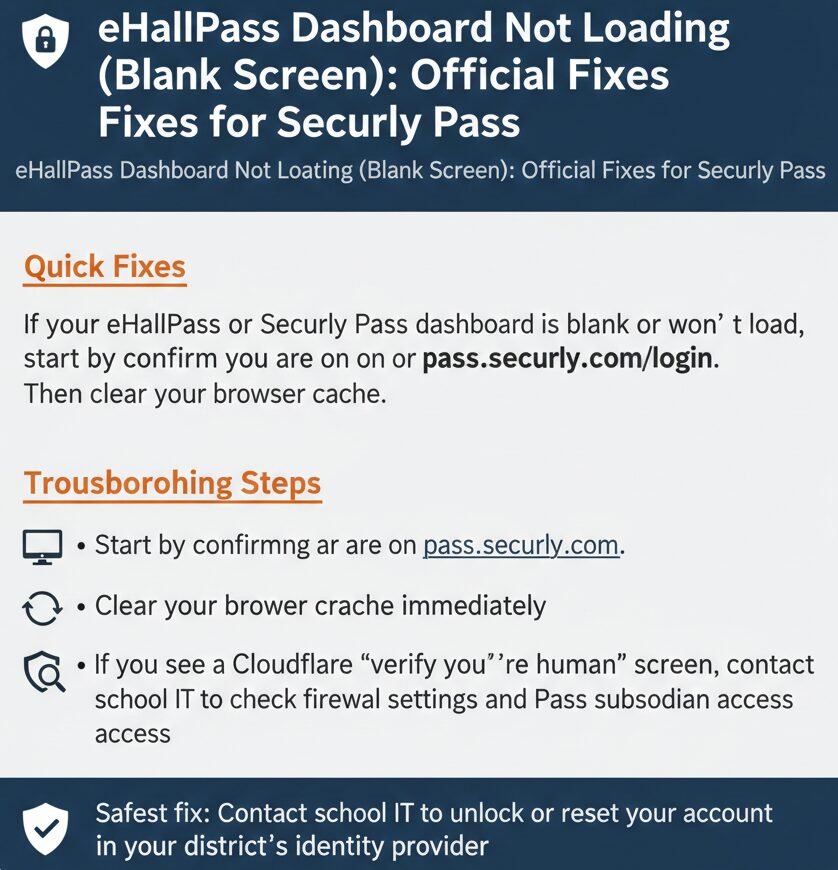
If your eHallPass or Securly Pass dashboard is blank or won’t load, start by confirming you are on pass.securly.com or pass.securly.com/login. Then clear your browser cache.
Start by confirming you are on **pass.securly.com**. Clear your browser cache immediately. If you see a Cloudflare “verify you’re human” screen, contact school IT to check firewall settings and Pass subdomain access.
Official Login and Dashboard Entry Points
Primary URLs
The official Securly Pass login and dashboard is at pass.securly.com. Some districts also direct users to pass.securly.com/login.
The Securly support article confirms that “The Pass system is a web-based application and does not require the installation of any software”. This means you access the dashboard through a web browser, not a downloaded app.
Between you and me, a lot of blank screen issues start because students or teachers are trying to log in through a bookmarked link that is outdated or a third-party site that claims to be Pass but is not official.[pass.securly]
Red Flags (Avoid These)
Here is the thing though. If you land on a site that does not have “securly.com” in the URL, you are probably not on the official Pass system. Unofficial login portals or random domains claiming to be Pass or eHallPass can look similar but won’t connect to your school’s dashboard. Always confirm the URL bar shows pass.securly.com before entering credentials.[pass.securly]
What “Dashboard Not Loading” Usually Means (Verified vs Not)
What We Can Verify From Vendor Support
- Pass is web-based with browser access. No software install is required. That means if your dashboard is not loading, the problem is almost always browser-related, network-related, or session-related.
- Vendor acknowledges dashboard issues like sluggishness, not refreshing, and UI glitches. The Securly support article says “Overall system sluggishness, Dashboard not updating dynamically, or names ‘jumping’ on the screen” are known issues. The same article explains how to fix common dashboard problems by clearing cache and resetting the accessibility widget.
- Cloudflare verification can appear due to suspicious traffic. The support article says “You are receiving this message from Cloudflare because your connection is causing the Pass system to check for suspicious activity”. This is not a password problem or a dashboard bug. It is a network-level security check.
What We Cannot Claim
Look, I will be straight with you. We searched official Securly documentation and did not find everything you might expect.
- No verified “supported browsers list” for Pass. The support article mentions clearing cache “can vary from browser to browser” and provides links for Chrome, Firefox, and Safari. That implies multiple browsers work, but Securly does not publish an official “Pass works on Chrome version X or newer” list.
- No verified “third-party cookies” requirement. We did not find official documentation saying Pass requires third-party cookies or that blocking them causes blank screens. Any claim about third-party cookies is inference, not verified.
- No verified official Pass status page. We found a third-party status aggregator for Securly Pass, but Securly does not publish its own official status.securly.com page for Pass. If you want to check for outages, you will need to contact your school IT or Securly support.
Fix It Step by Step (User Actions)
Step 1: Do the Vendor-Backed Fix First — Clear Your Browser Cache
Why: The Securly support article explicitly says “Clear the Cache on your computer — Clearing the cache can fix certain issues, like loading or formatting issues on certain sites”.
From what we have seen, this is the single most effective user-side fix for blank screens and layout problems. Old cached JavaScript or CSS files can prevent the dashboard from rendering correctly after a Pass system update.
How to clear cache: The method varies by browser. The Securly article links to instructions for Chrome, Firefox, and Safari. After clearing cache, close the browser completely and reopen it before trying to log in again.
Honestly, this drives us crazy when people skip this step. They assume clearing cache is “too simple” to work, but it solves the problem more often than any other single fix.
Step 2: Try a Clean Environment (Safe Test) — Switch Browser or Device
If clearing cache does not work, try a different browser or device. The vendor article says “Clearing the cache can vary from browser to browser,” which implies that Pass should work across multiple browsers.
Safe tests you can do:
- Try a different browser profile. If you use Chrome with extensions, try Firefox without extensions.
- Try a different device. If your school-issued Chromebook shows a blank screen, try your personal laptop or phone.
- Try incognito or private browsing mode. This bypasses cached data and most extensions.
Usually we see blank screens resolve when users switch from a heavily customized browser (with ad blockers, privacy extensions, and custom themes) to a clean browser profile.
Step 3: Check the Accessibility Widget (If Visible) — Reset Settings in the Accessibility Widget
The Securly support article warns that “The Accessibility Widget can impact the functionality of your Pass system”. If the accessibility widget is active on your dashboard, it can interfere with UI rendering or cause layout glitches.
What to do: The article says “By choosing the ‘Reset Settings’ button within the widget, you will clear any previously set features that may have been causing issues”.
This is not a common cause of blank screens, but if you turned on high contrast, text resizing, or other widget features and then the dashboard stopped loading correctly, resetting the widget is a safe test.
Step 4: If You See Cloudflare “Verify You’re Human” — Stop Rapid Retries and Switch Networks
Here is what most people do not realize. The Cloudflare verification screen is not a dashboard loading problem. It is a security check that blocks you from even reaching the dashboard.
The support article says “You are receiving this message from Cloudflare because your connection is causing the Pass system to check for suspicious activity”. This can happen if you are on a VPN, using a proxy, on a shared public network, or if multiple people are logging in from the same IP address.
Safe user checks:
- Stop retrying immediately. Repeated login attempts can make Cloudflare block you longer.
- Try a different network. If you are on school Wi-Fi, try your phone’s hotspot or home Wi-Fi.
- Try a different device. Sometimes the issue is device-specific.
When to escalate: If the Cloudflare message appears for multiple users on the same network, contact school IT. IT can adjust network patterns or whitelist school traffic with Securly.
Between you and me, if you see Cloudflare verification every time you try to log in from school but never from home, that is a network issue, not a you issue.
60-Second Decision Tree
Now, you might be wondering which fix to try first. Follow this decision tree and you will save yourself a lot of time.
Can you open pass.securly.com/login in your browser?
No: This is likely a network or filter issue. Jump to the “IT Checks” section below.
Yes: Continue to the next step.
Is the screen fully blank after login?
Yes: Try clearing cache, then switching browsers, then resetting the accessibility widget.
Do you see a Cloudflare “verify you’re human” message?
Yes: Stop repeated attempts. Try a different network or device. If it persists, contact school IT.
Is this happening to many users at once (teachers and students)?
Yes: This is likely an organization-wide performance or network issue. School IT should contact Securly Help Desk with screenshots and timing.
Dashboard Not Loading: Symptoms, Causes, and Fixes
| Symptom | Most Likely Cause (Verified) | Possible Cause (Inference) | Safe User Checks | When to Contact IT |
|---|---|---|---|---|
| Dashboard not loading (general) | Network/firewall blocking pass.securly.com or subdomains; browser cache or widget-related rendering issue | SSL inspection or content filtering interfering with page load | Confirm you are on https://pass.securly.com or /login [pass.securly]; clear browser cache and reload | If the page remains blank after trying different browsers and clearing cache |
| Blank white screen after login | Accessibility Widget or browser widget interfering with UI; broken or cached JavaScript affecting dashboard pane | Content blocker or ad-blocker blocking dashboard resources; local browser extension or policy modifying the page | Reset or hide the ADA Accessibility Widget in Pass; try a different browser or profile, or try incognito mode | If the screen is still blank across all browsers and incognito mode |
| Spinning loader never ends | Slow network or performance issue affecting Pass system; blocked or throttled access to pass.securly.com or subdomains | Browser extension blocking dashboard resources; incomplete SSO handoff | Clear cache and reload; try a different network or device; confirm pass.securly.com and subdomains are not filtered | If the loader spins indefinitely on multiple devices and networks |
| Dashboard not updating or sluggishness | Vendor-acknowledged sluggishness or refresh issue; accessibility widget impacting functionality | Large number of concurrent users; network throttling or filtering | Reset accessibility widget settings; clear cache and reload; wait and try again if system-wide | If sluggishness persists across all users and all networks, IT should contact Securly Help Desk |
| Cloudflare “verify you’re human” appears | Connection is causing Pass system to check for suspicious activity | VPN, proxy, or shared network triggering security checks; repeated login attempts from same IP | Stop rapid login attempts; try a different network or device; avoid VPN or proxy when accessing Pass | If verification screen appears for multiple users on school network, IT should check network patterns and contact Securly |
| Works at home but not on school Wi-Fi | School firewall or content filter blocking pass.securly.com or subdomains; school network triggering Cloudflare security checks | SSL inspection breaking page resources; forced device policy interfering with browser session | Try using a mobile hotspot at school to confirm it is a network issue | IT should allowlist pass.securly.com and all subdomains; IT should check if Cloudflare verification is network-triggered |
| Works on one device but not another | Device-specific browser cache or extension issue; device management policy blocking or modifying Pass session | Old browser version or incompatible browser configuration | Clear cache on the affected device; try a different browser on the same device; disable extensions and try again | If the problem persists on a school-managed device, IT should check device policies and browser lockdowns |
IT Checklist for Pass Blank Screens — What IT or Admin Should Verify (Admin Section)
Administrator Action Items
-
Allowlist pass.securly.com and All Subdomains
The Securly support article says “pass.securly.com – along with all subdomains” should be allowed. Firewalls, content filters, and SSL inspection tools can block or break Pass dashboard resources if these domains are not fully allowed.
-
Investigate Traffic Patterns Triggering Cloudflare Checks
The support article says Cloudflare checks are triggered by “your connection causing the Pass system to check for suspicious activity”. IT should verify that school network traffic is not being flagged as suspicious.
-
Check District Policies That Modify Web Sessions
The vendor confirms that Pass is a web-based application. Any district policy that forces reauthentication, blocks cookies, or modifies browser sessions can break the dashboard. IT should check device management policies that disable JavaScript or forced SSO reauthentication loops.
When to Escalate (and What Details to Send) — If Unresolved, Contact Securly Help Desk
The support article says “If you are still having issues with the screen not refreshing, the Dashboard not updating, or overall sluggishness in the system, please reach out to our Help Desk”.
When contacting Securly, include:
- Screenshots of the blank screen or error message.
- Time of incident and how long it has been happening.
- Affected user roles (student, teacher, admin).
- Affected networks (campus Wi-Fi vs offsite; all users vs specific groups).
- Whether the issue happens on all devices or only school-managed devices.
We believe strongly that escalating to the vendor with detailed information speeds up resolution. Generic “it doesn’t work” tickets take longer to diagnose.
FAQs: eHallPass Dashboard Won’t Load
The official Securly Pass login and dashboard is at pass.securly.com. Some districts also direct users to pass.securly.com/login. Always confirm the URL bar shows “securly.com” before entering credentials.
A blank white screen is usually caused by cached browser data or the accessibility widget interfering with the dashboard. The Securly support article recommends clearing your browser cache and resetting the accessibility widget if it is active.
Yes. The Securly support article explicitly says “Clearing the cache can fix certain issues, like loading or formatting issues on certain sites”. This is the vendor-backed first step for dashboard loading problems.
The Cloudflare verification message means “your connection is causing the Pass system to check for suspicious activity”. This can happen if you are on a VPN, using a proxy, or if multiple people are logging in from the same network. Stop repeated login attempts and try a different network or device.
Securly Pass is a web-based application. The vendor says “The Pass system is a web-based application and does not require the installation of any software”. You access it through a web browser, not a downloaded app.
No. Pass does not require any software installation. If your dashboard is not loading, the fix is almost always clearing cache, switching browsers, or checking network settings. There is nothing to reinstall.
Contact school IT first if the problem affects multiple users on the same network, if you see Cloudflare verification messages, or if the dashboard works at home but not at school. Contact Securly support if IT has ruled out network and device issues and the problem persists.
Usually this means the network where it does not work is blocking or filtering pass.securly.com or its subdomains. It can also mean that network traffic is triggering Cloudflare security checks. Ask IT to allowlist pass.securly.com and all subdomains.
Probably. We did not find official documentation confirming this, but the vendor article about clearing cache and switching browsers implies that browser configuration can affect Pass. Try disabling extensions or using incognito mode to test.
It can vary, but typically user-side fixes like clearing cache work immediately. Network or firewall issues can take longer because IT needs to adjust filtering or contact Securly. Organization-wide performance issues are escalated to Securly Help Desk and resolved based on vendor timelines.
Important Limits (Do Not Claim)
- Do not claim a specific browser list unless Securly publishes one. The vendor article mentions Chrome, Firefox, and Safari in cache-clearing examples, but that does not mean those are the only supported browsers.
- Do not claim third-party cookie requirements. We did not find official documentation saying Pass requires third-party cookies or that blocking them causes blank screens.
- Do not claim a Securly official status page if it is not vendor-owned. We found a third-party status aggregator, but Securly does not publish its own official status page for Pass. Direct users to contact IT or Securly support for outage information.