
Pass Expired Before Approval: What’s Actually Verified in Securly Pass
You submitted a pass request in eHallPass or Securly Pass but the teacher never approved it. Maybe you waited too long, or the request seemed to disappear. You’re calling it “expired before approval.”
What’s Happening
We searched the official Securly Pass vendor documentation and did not find an “expired before approval” status or explicit timeout for unapproved requests. This page focuses on the verified states you can check instead: “waiting approval” (pending) and “System ended” (which happens after approval, not before).
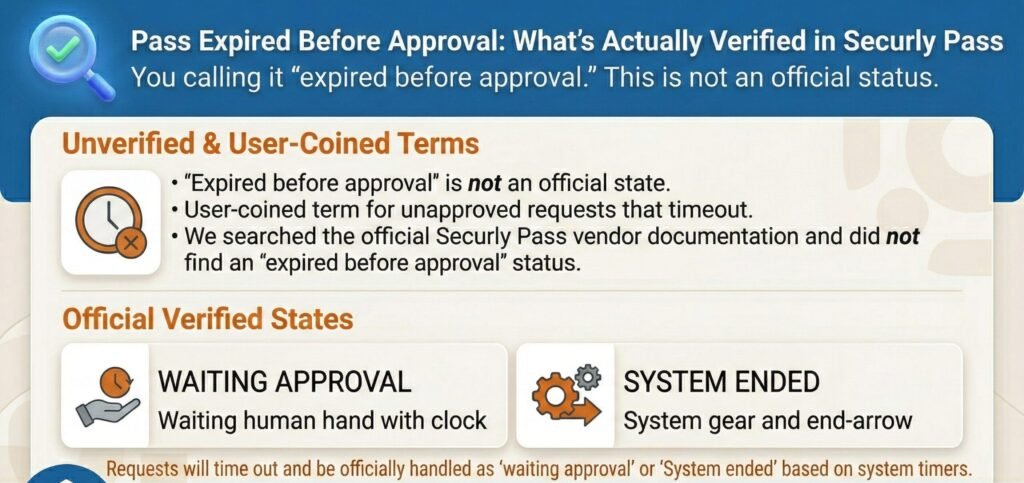
What “Waiting Approval” Means (Verified)
The Real State That Users Often Interpret as “Expired”
When you submit a pass request, it sits waiting approval until a teacher acts on it. The e-hallpass product brief says “Passes that are Waiting Approval can be approved or denied by the teacher”. That is the official term for the pending state.
- Student submits request, it sits waiting approval until a teacher acts. The Securly docs say “Notice that there is no badge in Linda’s card view as her pass request has not been approved yet”. No badge means not approved yet.
- Verified teacher-side location: Pass notification center, Requests tab. The docs say “Any pending request will be shown in the Requests tab”. That is where pending requests appear for teachers.
- Verified student-side clue: Student has no badge until approved. If you do not see an active-pass badge, your request has not been approved yet. It is not expired, it is just unapproved.
Between you and me, most “expired before approval” issues are really “never approved” issues. The request is still sitting in the teacher’s Requests tab waiting for action.
Mini Callout
If you don’t see an active-pass badge, your request may still be unapproved. Check with your teacher to confirm whether they approved or denied the request. The docs say pending requests stay in the Requests tab until the teacher acts on them.
Is There an “Expired Before Approval” Status?
Answer (Verified-Only)
“Expired” and “Request expired” wording were NOT FOUND in the provided vendor docs and support sources. We searched extensively and did not find an official “expired before approval” status in Securly Pass documentation.
What this likely means in real life without asserting product behavior:
- The request was not approved in time (teacher never acted). The docs say “Any pending request will be shown in the Requests tab”. If the teacher never checked the Requests tab and never approved or denied, the request just sits there. We did not find documentation stating that pending requests auto-expire after a certain time.
- The student is confusing “not approved yet” with “expired”. The docs say “Notice that there is no badge in Linda’s card view as her pass request has not been approved yet”. No badge means unapproved, not expired.
- The request went to a different teacher via routing (“Departing From” logic). The Securly Pass integration guide says “Pass request notifications will be sent to the teacher who the student requests the pass from in the Departing From field”. If the student selected the wrong teacher, the request went to that teacher instead. The “right” teacher will not see it.
Look, I will be straight with you. We cannot confirm that Securly Pass has an automatic expiry timer for pending requests because the official docs do not mention one. That does not mean it does not exist in your district’s setup. It means we cannot verify it from vendor documentation.
The Only Verified “Expiry-Like” Behavior: “System Ended” (After Approval)
Important Distinction: This Is Post-Approval, Not “Before Approval”
The only verified “expiry” behavior we found is called “System ended” and it happens after a pass is approved, not before.
- Define System ended: The Securly docs say “The ‘System ended’ status is shown when the system automatically ends the pass based on a time threshold set by the school”. This is an automatic timeout for active passes. The pass was approved, the student was using it, and then the system ended it based on school-configured time limits.
- How students interpret it: “My pass expired quickly” often equals System ended. If the teacher approved your pass but it ended faster than you expected, that is probably System ended. The docs confirm this is a school-configured time threshold.
Honestly, this drives us crazy when students say “my pass expired before approval” but they actually mean “my approved pass ended too quickly”. Those are two different issues. One is about teacher approval delay, the other is about post-approval time limits.
What To Do as a Student (Verified Steps Only)
Confirm It’s Not Just Still Waiting
If you don’t see the badge, your request has not been approved yet. The Securly docs say “Notice that there is no badge in Linda’s card view as her pass request has not been approved yet”. Wait for the teacher to approve.
Don’t spam requests. Instead, ask the teacher to check the Requests tab. The docs say “Any pending request will be shown in the Requests tab”. If the teacher checks the Requests tab and approves your request, you will get your badge.
Usually we see students submit two or three requests for the same trip because they think the first one failed. It did not fail, it is just unapproved. Extra requests just clog the teacher’s Requests tab.
Ask the Right Teacher to Approve It
If your school uses “Departing From” routing, the request is tied to that origin teacher. The Securly Pass integration guide says “Pass request notifications will be sent to the teacher who the student requests the pass from in the Departing From field”.
If you selected the wrong origin teacher, the “right” teacher won’t see it. The request went to the teacher you chose in the “Departing From” field. That teacher has the request in their Requests tab.
For more details about pending requests, see our eHallPass request pending guide. If you think your request is not sending, see our eHallPass pass not sending guide. If your teacher says they did not receive it, see our teacher not seeing eHallPass requests guide.
What To Do as a Teacher (Verified Steps Only)
Check the Requests Tab (Even If You Missed the Popup)
Pending requests appear in the Requests tab. The Securly docs say “Any pending request will be shown in the Requests tab”. Open the Pass notification center and go to the Requests tab.
Approve or deny from there. The docs say “The teacher can choose to approve or deny the pass request”. If you missed the popup, you can still act on the request from the Requests tab.
Between you and me, most “expired before approval” complaints from students come down to teachers not checking the Requests tab. The popup appeared, the teacher closed it, and the request sat unapproved.
When Students Say “It Expired”
- Check if the request is still sitting pending. The docs say “Any pending request will be shown in the Requests tab”. If you see the request there, it is not expired, it is just unapproved.
- If approved passes “end too soon,” it may be System ended (time threshold). The docs say “The ‘System ended’ status is shown when the system automatically ends the pass based on a time threshold set by the school”. That is a post-approval time limit, not a pre-approval expiry.
Well, it depends on what the student means by “expired,” but typically it is either unapproved or System ended.
Admin and IT Checks (Verified Items You Can Safely Say)
Review Time-Threshold Settings That Cause “System Ended”
If passes end automatically, confirm the school-configured time threshold. The Securly docs say “The ‘System ended’ status is shown when the system automatically ends the pass based on a time threshold set by the school”. If students complain that approved passes expire too quickly, check this setting.
In our experience, most “my pass expired” complaints are about System ended, not about pending requests timing out before approval.
Verify Routing and Assignment So Requests Go to the Correct “Departing From” Teacher
If students say requests “disappear,” it may be a routing or visibility issue, not expiry. The Securly Pass integration guide says “Pass request notifications will be sent to the teacher who the student requests the pass from in the Departing From field”. If the wrong teacher is assigned or if students are selecting the wrong Departing From teacher, requests will appear to vanish.
Verify that class assignments and rostering align with the Departing From teacher in the Pass system. IT should confirm the student roster matches the class assignments in Pass.
Rules That Affect Approval Decisions (Verified Concept)
Pass limits, destination closed or full, and no-contact checks are evaluated as part of the decision context. The e-hallpass product brief says the system “automatically checks to see if the student has a pass limit, the requested destination is closed or full, or if there’s another student in the halls that student isn’t allowed to be out with”. The teacher sees these warnings when reviewing the pending request.
Important: do not claim these auto-expire pending requests. The docs do not state that rules automatically cancel or expire unapproved requests. The rules influence whether a teacher approves or denies, but the request stays pending until the teacher acts.
It is frustrating when we see schools misunderstand this. Teachers think the system will auto-deny requests that violate rules, but it does not. The teacher must manually deny.
Troubleshooting by Scenario (Keep It Simple)
Scenario A: “My Request Expired Before the Teacher Saw It”
Verified framing: It may have remained waiting approval and was never approved. We did not find documentation about pending requests auto-expiring.
Student check: No badge means not approved. The docs say “Notice that there is no badge in Linda’s card view as her pass request has not been approved yet”.
Teacher check: Requests tab. The docs say “Any pending request will be shown in the Requests tab”. If the teacher checks the Requests tab and sees the request, it is still pending.
Scenario B: “Teacher Approved It, But It Ended Fast”
Verified framing: Could be System ended due to school time threshold. The docs say “The ‘System ended’ status is shown when the system automatically ends the pass based on a time threshold set by the school”.
Admin check: Time-threshold settings. If students complain that approved passes end too quickly, verify the school-configured time threshold.
Scenario C: “Requests Seem to Vanish”
Verified framing: Not documented as “expiry”. We did not find vendor documentation about pending requests auto-expiring or auto-deleting.
Best verified checks: Correct teacher routing (“Departing From”). The Securly Pass integration guide says “Pass request notifications will be sent to the teacher who the student requests the pass from in the Departing From field”. Also, check the Teacher’s Requests tab.
FAQs: Pass Expired Before Approval
“Waiting Approval” means a student submitted a pass request and it is visible in the teacher’s Requests tab but not yet approved or denied. The e-hallpass product brief says “Passes that are Waiting Approval can be approved or denied by the teacher”. The student will not have an active pass badge until the teacher approves.
NOT FOUND in the official vendor docs we reviewed. We did not find an explicit “expired before approval” status or timeout for unapproved requests in Securly Pass documentation. If a pass request is not approved, it may remain pending in the teacher’s Requests tab. If an approved pass ends quickly, that is “System ended” (post-approval).
Open the Pass notification center and go to the Requests tab. The Securly docs say “Any pending request will be shown in the Requests tab”. That is where all pending pass requests appear.
Because it is not approved yet. The Securly docs say “Notice that there is no badge in Linda’s card view as her pass request has not been approved yet”. Once the teacher approves your request, you will see an active pass badge.
“System ended” is a status shown when the system automatically ends an active pass based on a time threshold set by the school. The Securly docs say “The ‘System ended’ status is shown when the system automatically ends the pass based on a time threshold set by the school”. This happens after approval, not before.
Contact your teacher or admin to review the school-configured time threshold for passes. The docs confirm this is a school setting. If students consistently report that approved passes end too quickly, the admin should adjust the time threshold.
NOT VERIFIED. The e-hallpass product brief says the system checks if “the requested destination is closed or full” and other rules at approval time. But the docs do not state that these rules automatically cancel or expire pending requests. Rules influence whether a teacher approves or denies, but the request stays pending until the teacher acts.
We did not find official documentation stating how long pending requests remain before they are cleared or removed. The docs say “Any pending request will be shown in the Requests tab”. Contact your district IT if you need to know whether your school has a local policy for clearing old pending requests.
The request may still be sitting in the teacher’s Requests tab. Ask the teacher to check the Requests tab and approve or deny. The Securly docs say pending requests stay there until the teacher acts.
If your request was never approved and you still need a pass, you can submit a new request. But first confirm with your teacher whether the original request is still pending in their Requests tab. You do not want to spam multiple requests for the same trip.
Related Guides
Do Not Claim (Safety Box)
- Do not state any specific expiry timer for unapproved requests. We did not find documentation stating that pending requests auto-expire after a certain time (5 minutes, 10 minutes, etc.).
- Do not claim pending requests auto-delete or auto-expire without a source. The docs say pending requests appear in the Requests tab, but we did not find explicit statements about automatic removal or expiry.
- Do not invent UI strings like “Request expired.” We did not find this exact wording in the Securly Pass documentation.
- Do not recommend cache, incognito, or browser fixes for “expired” requests. We found verified troubleshooting steps about checking the Requests tab and verifying the Departing From teacher, but not about clearing cache.
Key Takeaway
If someone says “expired before approval,” the verified reality is usually that the request was still waiting approval (check Requests tab) or the pass was approved but later System ended due to a time threshold.